Configuring OpenIDM for Synchronization Between Active Directory and OpenDJ
Introduction
In this article we will configure two-way synchronization between Active Directory and OpenDJ. Changes made in Active Directory will be synchronized to OpenDJ and vice versa.
Configuring OpenIDM
A deployment of OpenIDM is described in the documentation. It is assumed that you have already deployed OpenIDM.
Configuring the data sources
Configuring Active Directory
Download the Active Directory provisioner.openicf-adldap.json Active Directory connection file from GitHub and copy it to the OpenIDM conf directory.
Modify the properties to match your Active Directory server settings:
| Setting | Description |
|---|---|
host |
Hostname/IP address of the AD server |
port |
Connection port (default 389) |
ssl |
SSL is not used by default |
principal |
DN of the account connecting to AD, e.g. |
credentials |
Account password |
baseContexts |
A list of DNs containing accounts to synchronize, e.g. |
baseContextsToSynchronize |
Identical to |
accountSearchFilter |
A filter to search for accounts |
accountSynchronizationFilter |
Filter for account synchronization. |
Configuring OpenDJ
If you do not have OpenDJ installed, install it as described in the documentation.
Download the Example.ldif test data file from GitHub
Perform the initial configuration of OpenDJ and import the data using the following command:
 cd /path/to/opendj

 ./setup --cli \
--hostname localhost \
--ldapPort 1389 \
--rootUserDN "cn=Directory Manager" \
--rootUserPassword password \
--adminConnectorPort 4444 \
--baseDN dc=com \
--ldifFile /path/to/Example.ldif \
--acceptLicense \
--no-prompt
...
Configuring Directory Server ..... Done.
Creating Base Entry dc=com ..... Done.
Starting Directory Server ....... Done.
...
Download the OpenDJ provisioner.openicf-ldap.json connection configuration file from GitHub and copy it to the OpenIDM conf directory.
The file can remain unchanged, as it is already configured for the default OpenDJ connection settings.
Configuring Active Directory → OpenDJ synchronization
Open the OpenIDM administrator console at http://localhost:8080/admin. Login with the username openidm-admin and password openidm-admin. In the top menu, navigate Configure → Mappings and create Mapping ad → user as shown in the figure below.
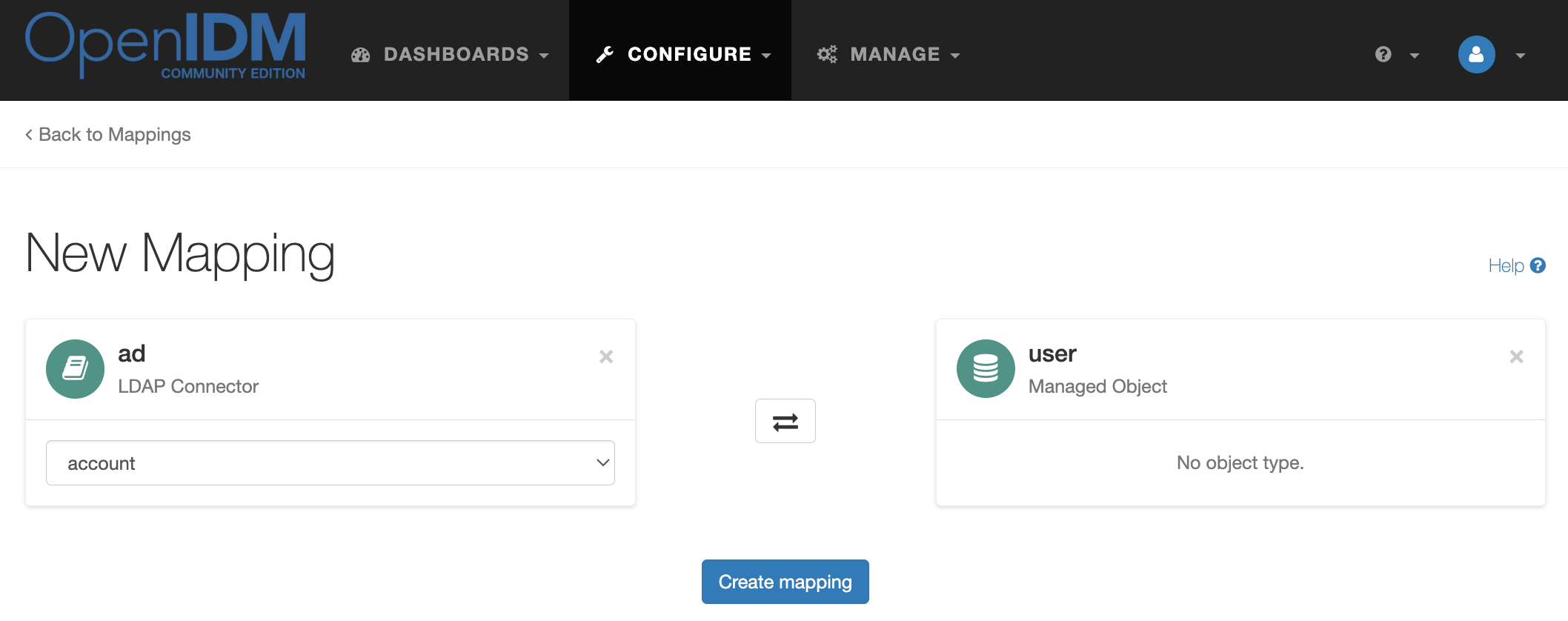
Open the created mapping systemAdAccounts_managedUser and on the Properties tab configure the field mappings as shown in the table below.
| Source | Target |
|---|---|
cn |
cn |
description |
description |
givenName |
givenName |
sn |
sn |
telephoneNumber |
telephoneNumber |
sAMAccountName |
userName |
On the Behaviors tab, configure the behavior for different synchronization situations.
| Situation | Action |
|---|---|
Ambiguous |
Ignore |
Source Missing |
Delete |
Missing |
Ignore |
Found Already Linked |
Exception |
Unqualified |
Delete |
Unassigned |
Ignore |
Link Only |
Exception |
Target Ignored |
Ignore |
Source Ignored |
Ignored |
All Gone |
Ignore |
Confirmed |
Update |
Found |
Ignore |
Absent |
Create |
Save the changes.
On the Mappings tab, create another mapping as shown in the figure below
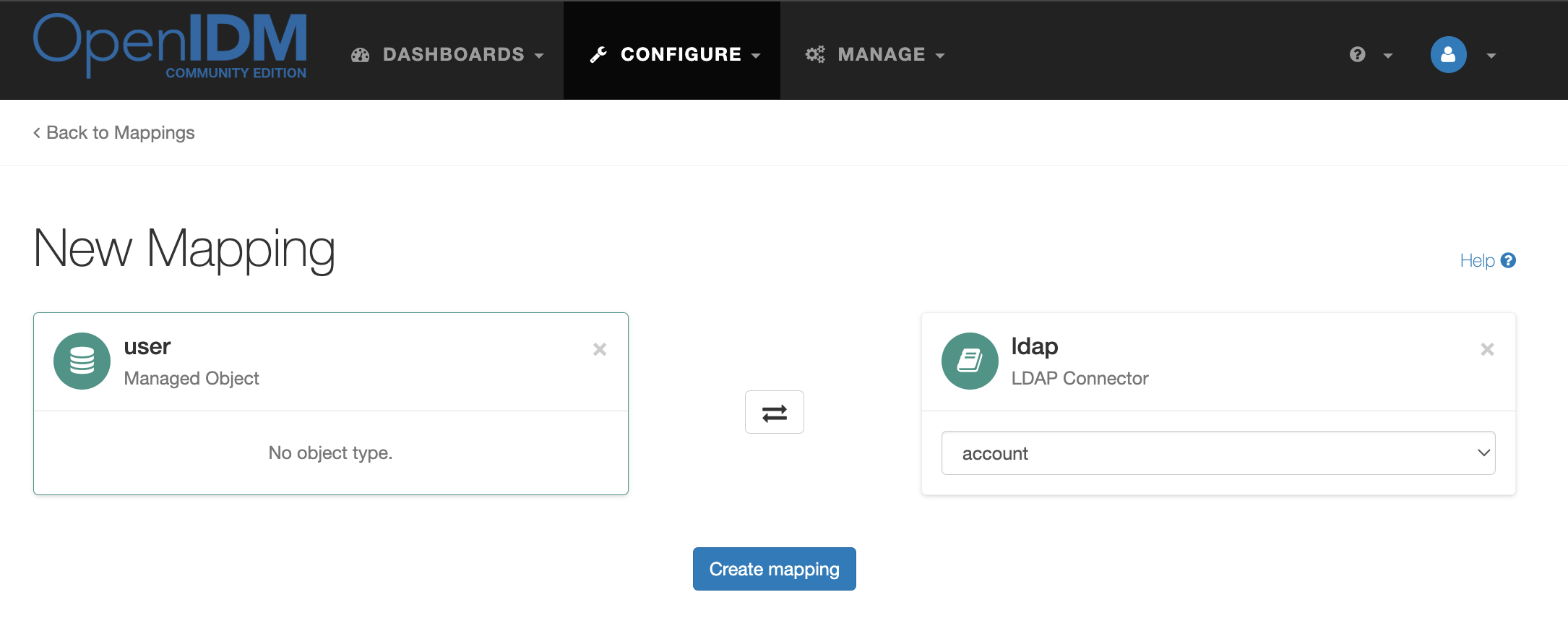
Open the settings of the created mapping managedUser_systemLdapAccounts and on the Properties tab customize the field mappings as shown in the table below:
| Source | Target | Transformation script | Conditional updates |
|---|---|---|---|
userName |
uid |
||
sn |
sn |
||
cn |
|
||
givenName |
givenName |
||
description |
description |
||
telephoneNumber |
telephoneNumber |
|
For the description field, specify the default value Created in OpenIDM
On the Behaviors tab, configure the behavior for different synchronization situations:
| Situation | Action |
|---|---|
Ambiguous |
Ignore |
Source Missing |
Delete |
Missing |
Ignore |
Found Already Linked |
Exception |
Unqualified |
Delete |
Unassigned |
Ignore |
Link Only |
Exception |
Target Ignored |
Ignore |
Source Ignored |
Ignore |
All Gone |
Ignore |
Confirmed |
Update |
Found |
Update |
Absent |
Create |
On the same tab in the Situational Event Scripts section, add a script for the onCreate event.
target.dn = 'uid=' + source.userName + ',ou=People,dc=example,dc=com';Configure OpenDJ → Active Directory synchronization
Create OpenDJ → Managed User synchronization
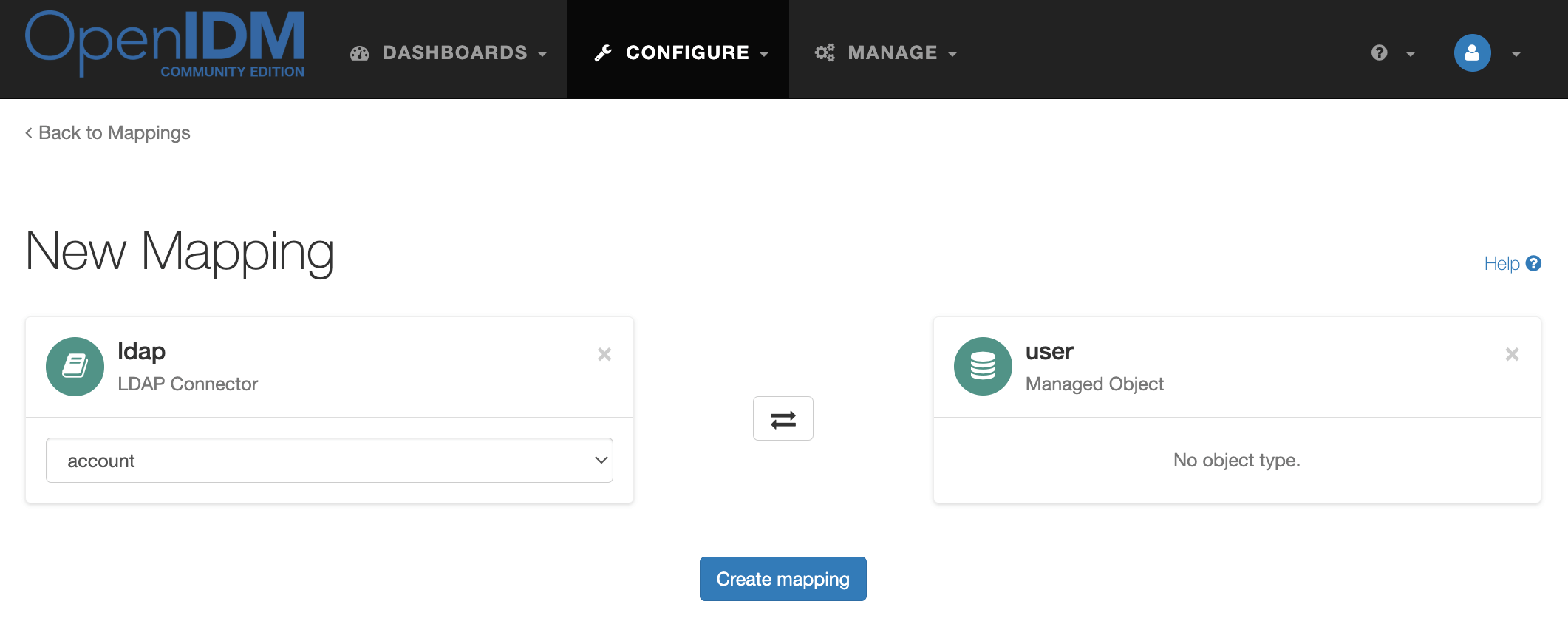
In the Linked Mapping field, select managedUser_systemLdapAccounts.
Open the created mapping systemLdapAccount_managedUser and on the Properties tab customize the field mappings as shown in the table.
| Source | Target |
|---|---|
sn |
sn |
givenName |
givenName |
uid |
userName |
telephoneNumber |
telephoneNumber |
On the Behaviors tab, configure the behavior.
| Situation | Action |
|---|---|
Ambiguous |
Ignore |
Source Missing |
Delete |
Missing |
Ignore |
Found Already Linked |
Exception |
Unqualified |
Delete |
Unassigned |
Ignore |
Link Only |
Exception |
Target Ignored |
Ignore |
Source Ignored |
Ignore |
All Gone |
Ignore |
Confirmed |
Update |
Found |
Ignore |
Absent |
Create |
Create mapping Managed User → Active Directory
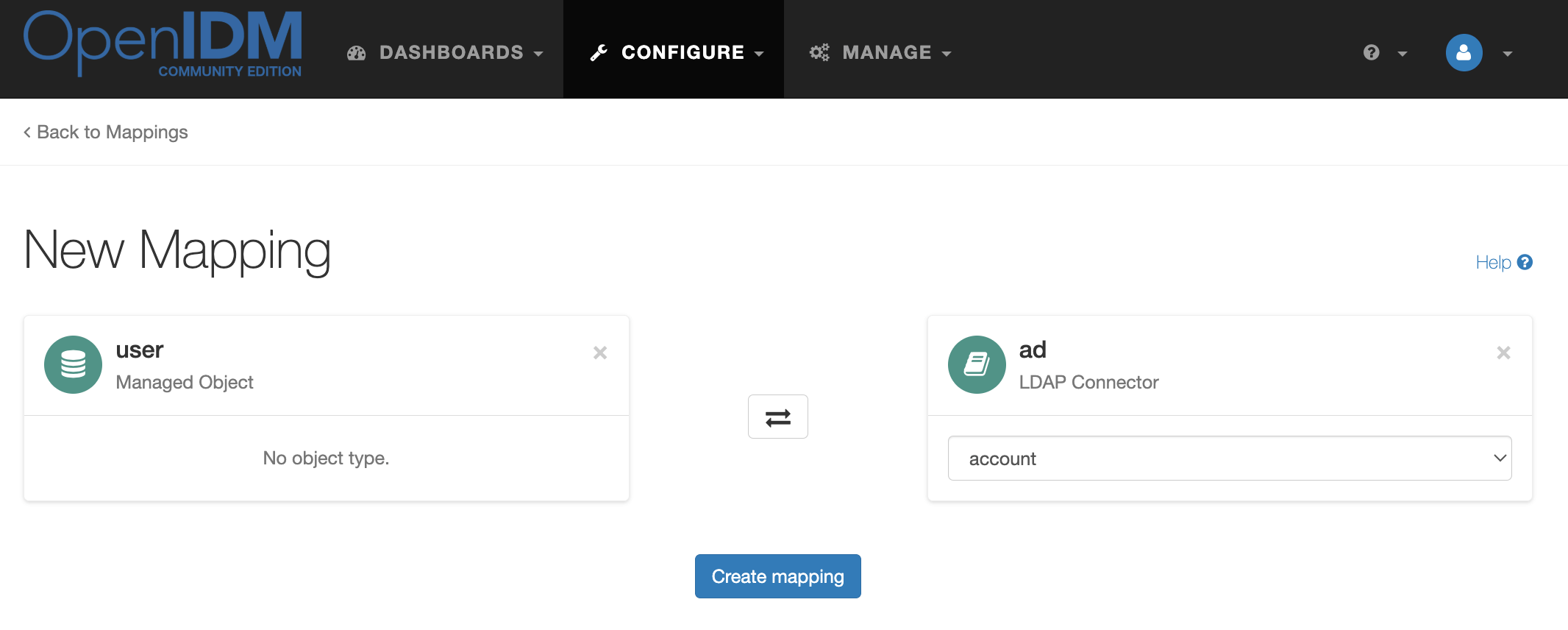
In the Linked mapping field, select systemAdAccounts_managedUser.
In the created mapping managedUser_systemAdAccounts , configure the mapping:
| Source | Target | Transformation Script |
|---|---|---|
userName |
dn |
|
givenName |
givenName |
|
sn |
sn |
|
cn |
|
|
description |
description |
|
telephoneNumber |
telephoneNumber |
|
userName |
sAMAccountName |
On the Behaviors tab, configure the behavior similar to the step above.
Verifying the solution
Active Directory Synchronization → OpenDJ
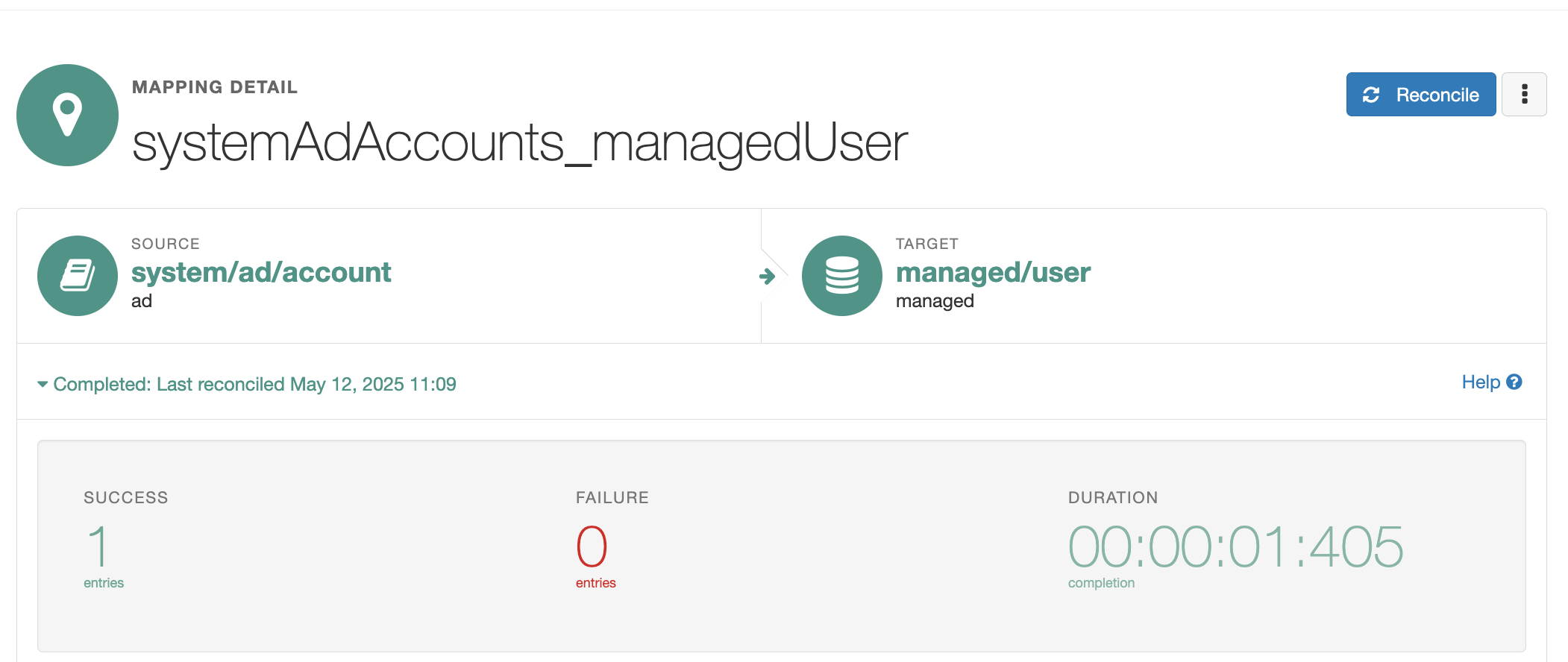
In the administrator console, select the systemAdAccounts_managedUser mapping and click Reconcile.
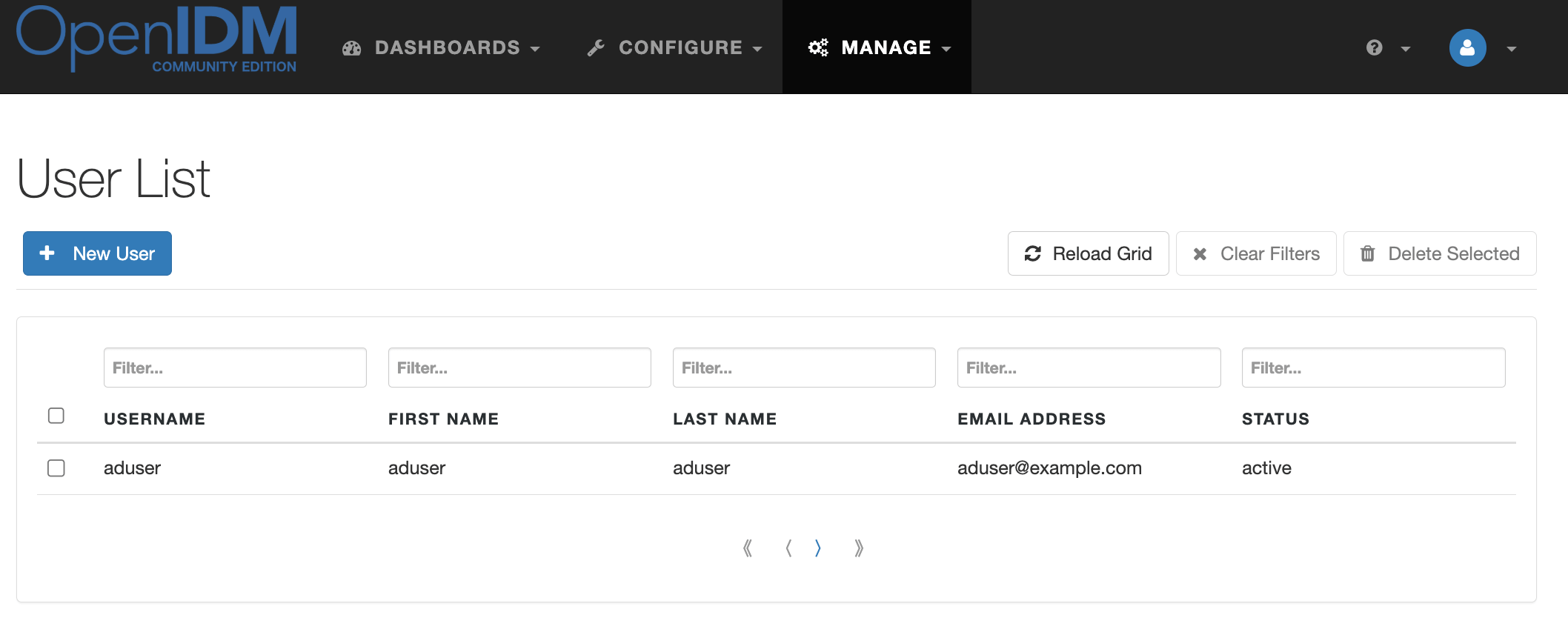
In the admin console, navigate to the Manage → User list. Accounts from Active Directory will appear in the user list
In the admin console, select the managedUser_systemLdapAccounts mapping and click Reconcile. After successful synchronization, the Active Directory records created in Managed Users will appear in OpenDJ.
Check if the account exists with the command
./opendj/bin/ldapsearch -p 1389 -b dc=example,dc=com  "(uid=aduser)" uid
dn: uid=aduser,ou=People,dc=example,dc=com
uid: aduser
OpenDJ Synchronization → Active Directory
In the admin console, under Configure → Mappings, select the systemLdapAccount_managedUser mapping and click Reconcile.
Navigate to Manage → User.
Accounts from OpenDJ will appear in the user list
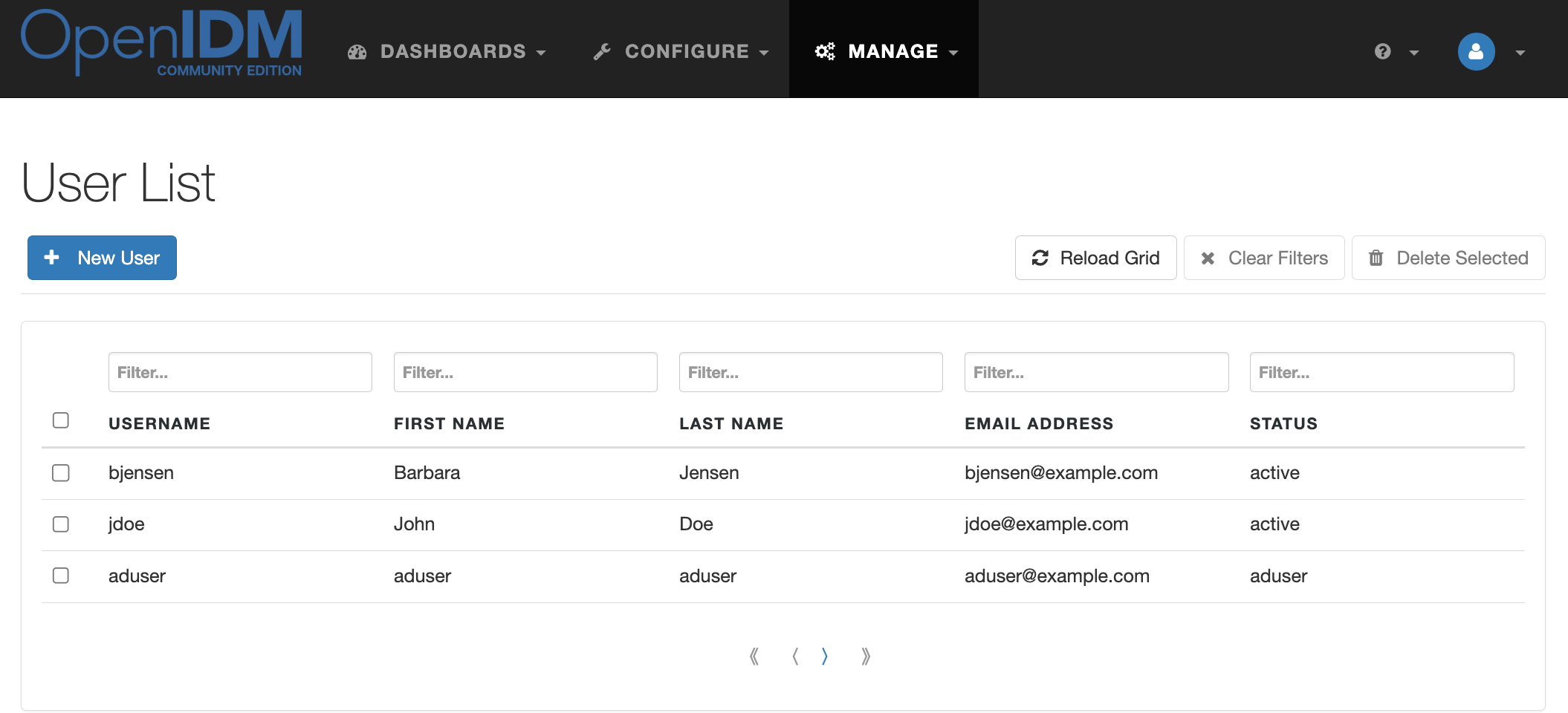
Next, select the managedUser_systemAdAccount mapping and click Reconcile.
After successful synchronization, accounts from OpenDJ will appear in Active Directory.
Verify their existence with the following command
ldapsearch -H ldap://ad.example.com -x -W -D "admin@example.com" -b "dc=example,dc=com" "(sAMAccountName=bjensen)" | grep dn
Enter LDAP Password:
dn: CN=bjensen,CN=Users,DC=example,DC=org