Samples That Use the PowerShell Connector Toolkit to Create Scripted Connectors
OpenICF provides a generic PowerShell Connector Toolkit that enables you to run PowerShell scripts on any external resource. The PowerShell Connector Toolkit is not a complete connector, in the traditional sense. Rather, it is a framework within which you must write your own PowerShell scripts to address the requirements of your Microsoft Windows ecosystem. You can use the PowerShell Connector Toolkit to create connectors that can provision any Microsoft system. This chapter describes sample connector implementations that enable you to provision to an Active Directory server instance, and to Azure Active Directory (Azure AD).
The PowerShell Connector Toolkit is available on the GitHub.
Connect to Active Directory
This sample provides a number of PowerShell scripts that enable you to perform basic CRUD (create, read, update, delete) operations on an Active Directory server. The samples use the MS Active Directory PowerShell module. For more information on this module, see the corresponding Microsoft documentation.
This sample assumes that OpenIDM is running on a Windows system on the localhost. It also assumes that Active Directory and the OpenICF .NET connector server run on a remote Windows server. The PowerShell connector runs on the .NET connector server.
To use this sample for OpenIDM instances installed on UNIX systems, adjust the relevant commands shown with PowerShell prompts.
Setting Up the PowerShell Active Directory Sample
Run the commands in this procedure from the PowerShell command line. The continuation character used in the command is the back-tick (`).
-
Install, configure, and start the .NET connector server on the machine that is running an Active Directory Domain Controller or on a workstation on which the Microsoft Active Directory PowerShell module is installed.
For instructions on installing the .NET connector server, see "Installing the .NET Connector Server" in the Integrator’s Guide.
-
Configure OpenIDM to connect to the .NET connector server.
To do so, copy the remote connector provisioner file from the
openidm\samples\provisionersdirectory to your project’sconf\directory, and edit the file according to your configuration.PS C:\ cd \path\to\openidm PS C:\path\to\openidm cp samples\provisioners\provisioner.openicf.connectorinfoprovider.json confFor instructions on editing this file, see "Configuring OpenIDM to Connect to the .NET Connector Server" in the Integrator’s Guide.
-
Download the PowerShell Connector Toolkit archive (
mspowershell-connector-1.5.0.0.zip) from the GitHub.Extract the archive and move the
MsPowerShell.Connector.dllto the folder in which the connector server application (connectorserver.exe) is located. -
Copy the PowerShell scripts from the
samples\powershell2AD\toolsdirectory, to the machine on which the connector server is installed.PS C:\path\to\openidm>dir samples\powershell2AD\tools Directory: C:\path\to\openidm\samples\powershell2AD\tools Mode LastWriteTime Length Name ---- ------------- ------ ---- ----- 11/15/2015 01:55 PM 2813 ADAuthenticate.ps1 ----- 11/15/2015 01:55 PM 10019 ADCreate.ps1 ----- 11/15/2015 01:55 PM 2530 ADDelete.ps1 ----- 11/15/2015 01:55 PM 2617 ADResolveUsername.ps1 ----- 11/15/2015 01:55 PM 7998 ADSchema.ps1 ----- 11/15/2015 01:55 PM 3706 ADSearch.ps1 ----- 11/15/2015 01:55 PM 4827 ADSync.ps1 ----- 11/15/2015 01:55 PM 2075 ADTest.ps1 ----- 11/15/2015 01:55 PM 10044 ADUpdate.ps1 PS C:\path\to\openidm> -
Copy the sample connector configuration for the PowerShell connector from the
samples\provisionersdirectory to your project’sconfdirectory.PS C:\ cd \path\to\openidm PS C:\ cp samples\provisioners\provisioner.openicf-adpowershell.json confThe following excerpt of the sample connector configuration shows the configuration properties:
"configurationProperties" : {
    "AuthenticateScriptFileName" : "C:/openidm/samples/powershell2AD/tools/ADAuthenticate.ps1",
    "CreateScriptFileName" : "C:/openidm/samples/powershell2AD/tools/ADCreate.ps1",
    "DeleteScriptFileName" : "C:/openidm/samples/powershell2AD/tools/ADDelete.ps1",
    "ResolveUsernameScriptFileName" : "C:/openidm/samples/powershell2AD/tools/ADResolveUsername.ps1",
    "SchemaScriptFileName" : "C:/openidm/samples/powershell2AD/tools/ADSchema.ps1",
    "SearchScriptFileName" : "C:/openidm/samples/powershell2AD/tools/ADSearch.ps1",
    "SyncScriptFileName" : "C:/openidm/samples/powershell2AD/tools/ADSync.ps1",
    "TestScriptFileName" : "C:/openidm/samples/powershell2AD/tools/ADTest.ps1",
    "UpdateScriptFileName" : "C:/openidm/samples/powershell2AD/tools/ADUpdate.ps1",
    "VariablesPrefix" : "Connector",
    "QueryFilterType" : "AdPsModule",
    "ReloadScriptOnExecution" : true,
    "UseInterpretersPool" : true,
    "SubstituteUidAndNameInQueryFilter" : true,
    "UidAttributeName" : "ObjectGUID",
    "NameAttributeName" : "DistinguishedName",
    "PsModulesToImport" : [ "ActiveDirectory" ],
    "Host" : "",
    "Port" : null,
    "Login" : "",
    "Password" : null
  },
The sample connector configuration assumes that the scripts are located in
C:/openidm/samples/powershell2AD/tools/. If you copied your scripts to a different location, adjust your connector configuration file accordingly.Note that the OpenICF framework requires the path to use forward slash characters and not the backslash characters that you would expect in a Windows path.
Add a
CustomPropertiessection to your connector configuration file, and set your base context, for example:"CustomProperties" : [ "baseContext = CN=Users,DC=example,DC=com" ]The PowerShell connector parses this string value to create a key=value pair. Because C# does not have built-in JSON support, this custom parser allows you to pass in configuration values beyond what is added to the static configuration.
The host, port, login and password of the machine on which Active Directory runs do not need to be specified here. By default the Active Directory cmdlets pick up the first available Domain Controller. In addition, the scripts are executed using the credentials of the .Net connector server.
The
"ReloadScriptOnExecution"property is set totruein this sample configuration. This setting causes script files to be reloaded each time the script is invoked. Having script files reloaded each time is suitable for debugging purposes. However, this property should be set tofalsein production environments, as the script reloading can have a negative performance impact.In addition, make sure that the value of the
"connectorHostRef"property in the connector configuration file matches the value that you specified in the remote connector configuration file, in step 2 of this procedure. For example:"connectorHostRef" : "dotnet",
Testing the PowerShell Active Directory Sample
Because you have copied all of the required configuration files into the default OpenIDM project, you can start OpenIDM with the default configuration (that is, without the -p option).
PS C:\ cd \path\to\openidm
PS C:\ .\startup.bat
When OpenIDM has started, you can test the sample by using the curl command-line utility. The following examples test the scripts that were provided in the tools directory.
-
Test the connector configuration, and whether OpenIDM is able to connect to the .NET connector server with the following request.
PS C:\ curl ` --header "X-OpenIDM-Username: openidm-admin" ` --header "X-OpenIDM-Password: openidm-admin" ` --request POST ` "http://localhost:8080/openidm/system?_action=test" [ { "ok": true, "connectorRef": { "bundleVersion": "[1.4.3.0,2.0.0.0)", "bundleName": "MsPowerShell.Connector", "connectorName": "Org.ForgeRock.OpenICF.Connectors.MsPowerShell.MsPowerShellConnector" }, "objectTypes": [ "__ALL__", "group", "account" ], "config": "config/provisioner.openicf/adpowershell", "enabled": true, "name": "adpowershell" } ] -
Query the users in your Active Directory with the following request:
PS C:\ curl ` --header "X-OpenIDM-Username: openidm-admin" ` --header "X-OpenIDM-Password: openidm-admin" ` --request GET ` "http://localhost:8080/openidm/system/adpowershell/account?_queryId=query-all-ids" { "remainingPagedResults": -1, "pagedResultsCookie": null, "resultCount": 1257, "result": [ { "_id": "7c41496a-9898-4074-a537-bed696b6be92", "distinguishedName": "CN=Administrator,CN=Users,DC=example,DC=com" }, { "_id": "f2e08a5c-473f-4798-a2d5-d5cc27c862a9", "distinguishedName": "CN=Guest,CN=Users,DC=example,DC=com" }, { "_id": "99de98a3-c125-48dd-a7c2-e21f1488ab06", "distinguishedName": "CN=Ben Travis,CN=Users,DC=example,DC=com" }, { "_id": "0f7394cc-c66a-404f-ad6d-38dbb4b6526d", "distinguishedName": "CN=Barbara Jensen,CN=Users,DC=example,DC=com" }, { "_id": "3e6fa858-ed3a-4b58-9325-1fca144eb7c7", "distinguishedName": "CN=John Doe,CN=Users,DC=example,DC=com" }, { "_id": "6feef4a0-b121-43dc-be68-a96703a49aba", "distinguishedName": "CN=Steven Carter,CN=Users,DC=example,DC=com" }, ... -
To return the complete record of a specific user, include the ID of the user in the URL. The following request returns the record for Steven Carter.
PS C:\ curl ` --header "X-OpenIDM-Username: openidm-admin" ` --header "X-OpenIDM-Password: openidm-admin" ` --request GET ` "http://localhost:8080/openidm/system/adpowershell/account/6feef4a0-b121-43dc-be68-a96703a49aba" { "_id": "6feef4a0-b121-43dc-be68-a96703a49aba", "postalCode": null, "passwordNotRequired": false, "cn": "Steven Carter", "name": "Steven Carter", "trustedForDelegation": false, "uSNChanged": "47219", "manager": null, "objectGUID": "6feef4a0-b121-43dc-be68-a96703a49aba", "modifyTimeStamp": "11/27/2014 3:37:16 PM", "employeeNumber": null, "sn": "Carter", "userAccountControl": 512, "passwordNeverExpires": false, "displayName": "Steven Carter", "initials": null, "pwdLastSet": "130615726366949784", "scriptPath": null, "badPasswordTime": "0", "employeeID": null, "badPwdCount": "0", "accountExpirationDate": null, "userPrincipalName": "steve.carter@ad0.example.com", "sAMAccountName": "steve.carter", "mail": "steven.carter@example.com", "logonCount": "0", "cannotChangePassword": false, "division": null, "streetAddress": null, "allowReversiblePasswordEncryption": false, "description": null, "whenChanged": "11/27/2014 3:37:16 PM", "title": null, "lastLogon": "0", "company": null, "homeDirectory": null, "whenCreated": "6/23/2014 2:50:48 PM", "givenName": "Steven", "telephoneNumber": "555-2518", "homeDrive": null, "uSNCreated": "20912", "smartcardLogonRequired": false, "distinguishedName": "CN=Steven Carter,CN=Users,DC=example,DC=com", "createTimeStamp": "6/23/2014 2:50:48 PM", "department": null, "memberOf": [ "CN=employees,DC=example,DC=com" ], "homePhone": null } -
Test whether you can authenticate as one of the users in your Active Directory. The username that you specify here can be either an ObjectGUID, UPN, sAMAccountname or CN.
$ PS C:\ curl `
 --header "X-OpenIDM-Username: openidm-admin" `
 --header "X-OpenIDM-Password: openidm-admin" `
 --request POST `
 "http://localhost:8080/openidm/system/adpowershell/account?_action=authenticate&username=Steven+Carter&password=Passw0rd"
{
  "_id": "6feef4a0-b121-43dc-be68-a96703a49aba"
}
The request returns the ObjectGUID if the authentication is successful.
-
You can return the complete record for a specific user, using the query filter syntax described in "Constructing Queries" in the Integrator’s Guide.
The following query returns the record for the guest user.
PS C:\ curl ` --header "X-OpenIDM-Username: openidm-admin" ` --header "X-OpenIDM-Password: openidm-admin" ` --request GET ` "http://localhost:8080/openidm/system/adpowershell/account?_queryFilter=cn+eq+guest" { "remainingPagedResults": -1, "pagedResultsCookie": null, "resultCount": 1, "result": [ { "_id": "f2e08a5c-473f-4798-a2d5-d5cc27c862a9", "postalCode": null, "passwordNotRequired": true, "cn": "Guest", "name": "Guest", "trustedForDelegation": false, "uSNChanged": "8197", "manager": null, "objectGUID": "f2e08a5c-473f-4798-a2d5-d5cc27c862a9", "modifyTimeStamp": "6/9/2014 12:35:16 PM", "employeeNumber": null, "userAccountControl": 66082, "whenChanged": "6/9/2014 12:35:16 PM", "initials": null, "pwdLastSet": "0", "scriptPath": null, "badPasswordTime": "0", "employeeID": null, "badPwdCount": "0", "accountExpirationDate": null, "sAMAccountName": "Guest", "logonCount": "0", "cannotChangePassword": true, "division": null, "streetAddress": null, "allowReversiblePasswordEncryption": false, "description": "Built-in account for guest access to the computer/domain", "userPrincipalName": null, "title": null, "lastLogon": "0", "company": null, "homeDirectory": null, "whenCreated": "6/9/2014 12:35:16 PM", "givenName": null, "homeDrive": null, "uSNCreated": "8197", "smartcardLogonRequired": false, "distinguishedName": "CN=Guest,CN=Users,DC=example,DC=com", "createTimeStamp": "6/9/2014 12:35:16 PM", "department": null, "memberOf": [ "CN=Guests,CN=Builtin,DC=example,DC=com" ], "homePhone": null, "displayName": null, "passwordNeverExpires": true } ] } -
Test whether you are able to create a user on the Active Directory server by sending a POST request with the
createaction.The following request creates the user
Jane Doeon the Active Directory server.PS C:\ curl ` --header "X-OpenIDM-Username: openidm-admin" ` --header "X-OpenIDM-Password: openidm-admin" ` --header "Content-Type: application/json" ` --request POST ` --data "{ \"distinguishedName\" : \"CN=Jane Doe,CN=Users,DC=example,DC=com\", \"sn\" : \"Doe\", \"cn\" : \"Jane Doe\", \"sAMAccountName\" : \"sample\", \"userPrincipalName\" : \"janedoe@example.com\", \"__ENABLE__\" : true, \"__PASSWORD__\" : \"Passw0rd\", \"telephoneNumber\" : \"0052-611-091\" }" ` "http://localhost:8080/openidm/system/adpowershell/account?_action=create" { "_id": "42725210-8dce-4fdf-b0e0-393cf0377fdf", "title": null, "uSNCreated": "47244", "pwdLastSet": "130615892934093041", "cannotChangePassword": false, "telephoneNumber": "0052-611-091", "smartcardLogonRequired": false, "badPwdCount": "0", "department": null, "distinguishedName": "CN=Jane Doe,CN=Users,DC=example,DC=com", "badPasswordTime": "0", "employeeID": null, "cn": "Jane Doe", "division": null, "description": null, "userPrincipalName": "janedoe@example.com", "passwordNeverExpires": false, "company": null, "memberOf": [], "givenName": null, "streetAddress": null, "sn": "Doe", "initials": null, "logonCount": "0", "homeDirectory": null, "employeeNumber": null, "objectGUID": "42725210-8dce-4fdf-b0e0-393cf0377fdf", "manager": null, "lastLogon": "0", "trustedForDelegation": false, "scriptPath": null, "allowReversiblePasswordEncryption": false, "modifyTimeStamp": "11/27/2014 8:14:53 PM", "whenCreated": "11/27/2014 8:14:52 PM", "whenChanged": "11/27/2014 8:14:53 PM", "accountExpirationDate": null, "name": "Jane Doe", "displayName": null, "homeDrive": null, "passwordNotRequired": false, "createTimeStamp": "11/27/2014 8:14:52 PM", "uSNChanged": "47248", "sAMAccountName": "sample", "userAccountControl": 512, "homePhone": null, "postalCode": null } -
Test whether you are able to update a user object on the Active Directory server by sending a PUT request with the complete object, and including the user ID in the URL.
The following request updates user
Jane Doe’s entry, including her ID in the request. The update sends the same information that was sent in the `createrequest, but adds anemployeeNumber.PS C:\ curl ` --header "X-OpenIDM-Username: openidm-admin" ` --header "X-OpenIDM-Password: openidm-admin" ` --header "Content-Type: application/json" ` --header "If-Match: *" ` --request PUT ` --data "{ \"distinguishedName\" : \"CN=Jane Doe,CN=Users,DC=example,DC=com\", \"sn\" : \"Doe\", \"cn\" : \"Jane Doe\", \"sAMAccountName\" : \"sample\", \"userPrincipalName\" : \"janedoe@example.com\", \"__ENABLE__\" : true, \"__PASSWORD__\" : \"Passw0rd\", \"telephoneNumber\" : \"0052-611-091\", \"employeeNumber\": \"567893\" }" ` "http://localhost:8080/openidm/system/adpowershell/account/42725210-8dce-4fdf-b0e0-393cf0377fdf" { "_id": "42725210-8dce-4fdf-b0e0-393cf0377fdf", "title": null, "uSNCreated": "47244", "pwdLastSet": "130615906375709689", "cannotChangePassword": false, "telephoneNumber": "0052-611-091", "smartcardLogonRequired": false, "badPwdCount": "0", "department": null, "distinguishedName": "CN=Jane Doe,CN=Users,DC=example,DC=com", "badPasswordTime": "0", "employeeID": null, "cn": "Jane Doe", "division": null, "description": null, "userPrincipalName": "janedoe@example.com", "passwordNeverExpires": false, "company": null, "memberOf": [], "givenName": null, "streetAddress": null, "sn": "Doe", "initials": null, "logonCount": "0", "homeDirectory": null, "employeeNumber": "567893", "objectGUID": "42725210-8dce-4fdf-b0e0-393cf0377fdf", "manager": null, "lastLogon": "0", "trustedForDelegation": false, "scriptPath": null, "allowReversiblePasswordEncryption": false, "modifyTimeStamp": "11/27/2014 8:37:17 PM", "whenCreated": "11/27/2014 8:14:52 PM", "whenChanged": "11/27/2014 8:37:17 PM", "accountExpirationDate": null, "name": "Jane Doe", "displayName": null, "homeDrive": null, "passwordNotRequired": false, "createTimeStamp": "11/27/2014 8:14:52 PM", "uSNChanged": "47253", "sAMAccountName": "sample", "userAccountControl": 512, "homePhone": null, "postalCode": null } -
Test whether you are able to delete a user object on the Active Directory server by sending a DELETE request with the user ID in the URL.
The following request deletes user `Jane Doe’s entry.
PS C:\ curl `
 --header "X-OpenIDM-Username: openidm-admin" `
 --header "X-OpenIDM-Password: openidm-admin" `
 --request DELETE `
 "http://localhost:8080/openidm/system/adpowershell/account/42725210-8dce-4fdf-b0e0-393cf0377fdf"
The response includes the complete user object that was deleted.
You can you attempt to query the user object to confirm that it has been deleted.
PS C:\ curl `
 --header "X-OpenIDM-Username: openidm-admin" `
 --header "X-OpenIDM-Password: openidm-admin" `
 --request GET `
 "http://localhost:8080/openidm/system/adpowershell/account/42725210-8dce-4fdf-b0e0-393cf0377fdf"
{
  "message": "",
  "reason": "Not Found",
  "code": 404
}
Connect to Azure AD
This sample uses the Microsoft Azure Active Directory (Azure AD) PowerShell module. For more information about this module, see https://msdn.microsoft.com/en-us/library/jj151815.aspx.
The sample assumes that OpenIDM runs on a local UNIX/Linux machine and that the PowerShell Connector Toolkit (and the OpenICF .NET connector server) run on a remote Windows host with access to an instance of AzureAD. Adjust the command-line examples if your OpenIDM instance runs on Windows.
This sample demonstrates how you can synchronize managed object data such as users and groups with a Microsoft AzureAD deployment.
|
This sample utilizes a connection between three systems: OpenIDM on UNIX/Linux, an OpenICF .NET connector server on Windows, and Azure AD "in the cloud". Internet connection times vary widely and performance is based on responses to external calls, including potential timeouts, if a command doesn’t perform the first time, try again. OpenIDM’s synchronization and reconciliation performance will be fully dependent on the performance of the managed resource. |
Before You Start
Before you can run this sample, you need to meet several prerequisites. This section describes each of the prerequisites, and how to install or test them.
-
You must have a Microsoft account, which gives you access to Microsoft Azure.
You can set up a Microsoft account at https://signup.live.com/.
With a Microsoft account, you can access the Azure portal at http://azure.microsoft.com.
-
You must have an Azure AD cloud directory.
If you do not have an existing Azure AD cloud, set one up as follows:
-
Navigate to https://account.windowsazure.com/signup. Once you log in with your Microsoft credentials, fill in the prompts and Microsoft will create an Azure subscription.
-
Navigate to http://portal.azure.com, log in with your Microsoft account.
-
In the Microsoft Azure screen, select New on the left hand menu.
-
From the New list, select Security + Identity > Active Directory.
-
Complete the Add Directory form with the details of your directory, and select the check mark at the bottom of the form to submit.
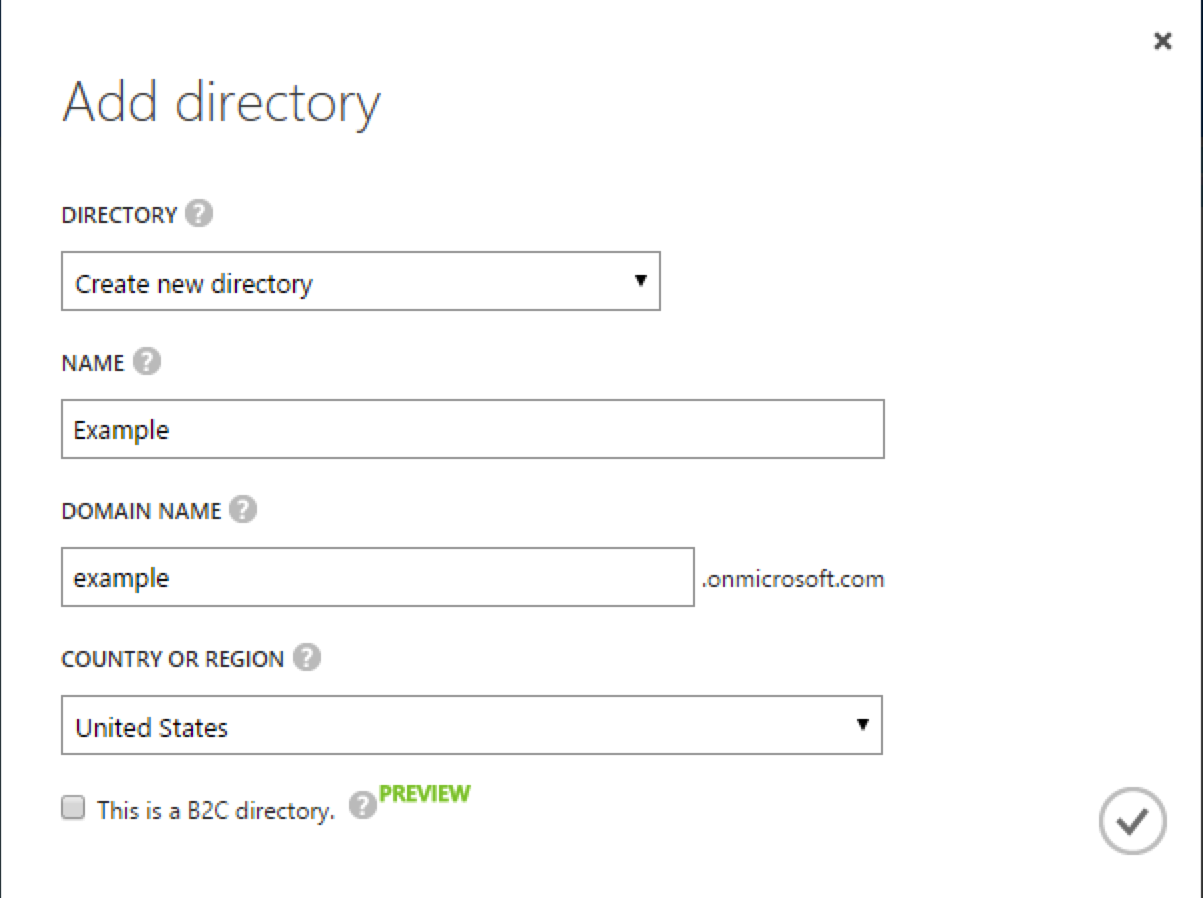
Your directory should now be created and listed.
-
-
Apart from your default Microsoft Azure account, you must have an administrative user account for your Azure AD.
By default your directory will have a single identity, your Microsoft Azure account. You cannot use this account to run the PowerShell Connector scripts that administer the Azure AD.
If your Azure AD does not already include other administrative accounts, create a local administrative identity that is native to your directory as follows:
-
Log in to https://portal.azure.com/ with your Microsoft Azure credentials.
-
From the left-hand menu, select Browse > Active Directory.
-
Select your cloud directory from the left-hand menu and select USERS in the top navigation bar.
-
At the bottom of the page select Add User and enter the details of the new administrative user.
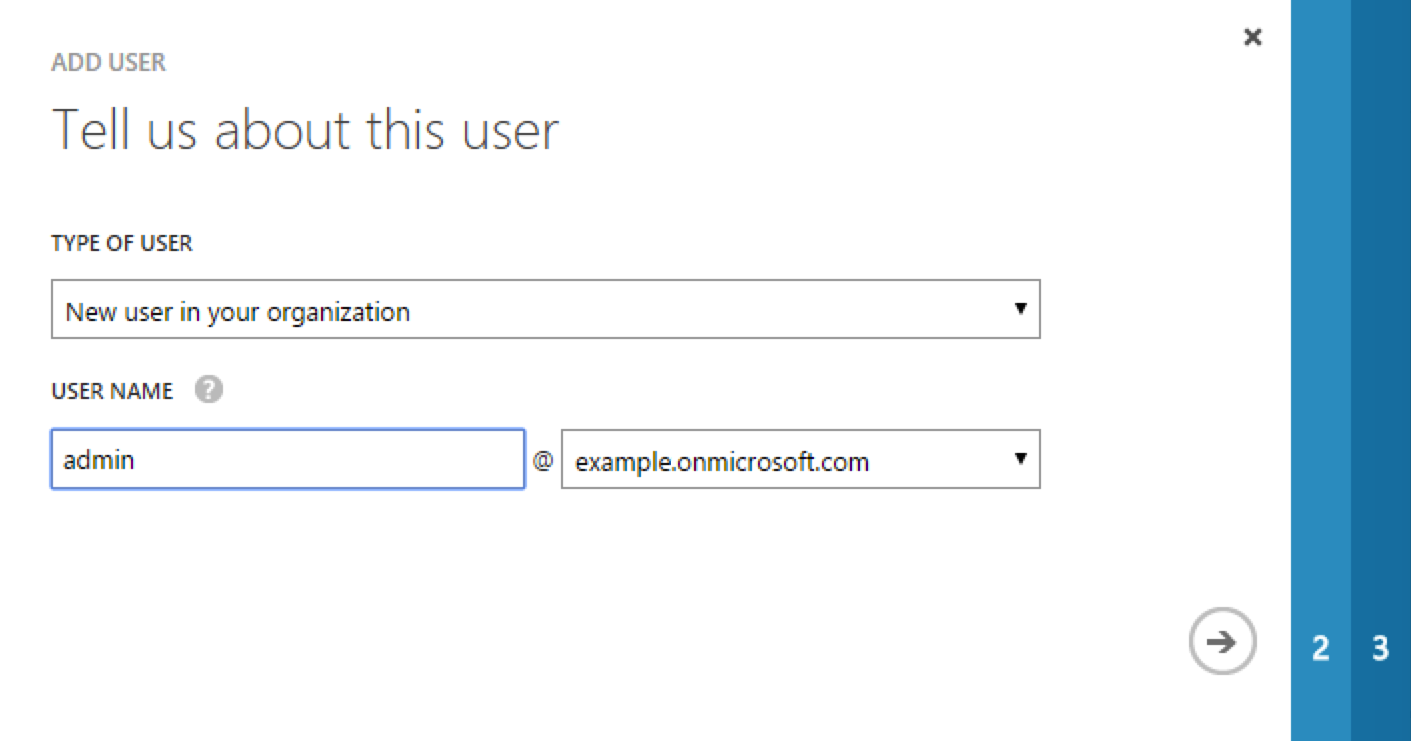
Select the arrow to continue.
-
On the User Profile screen, enter the details of this administrative user. Make sure that the user’s Role is at least User Admin.
Select the arrow to continue.
-
On the final screen, select Create and note the temporary password that is assigned to the user.
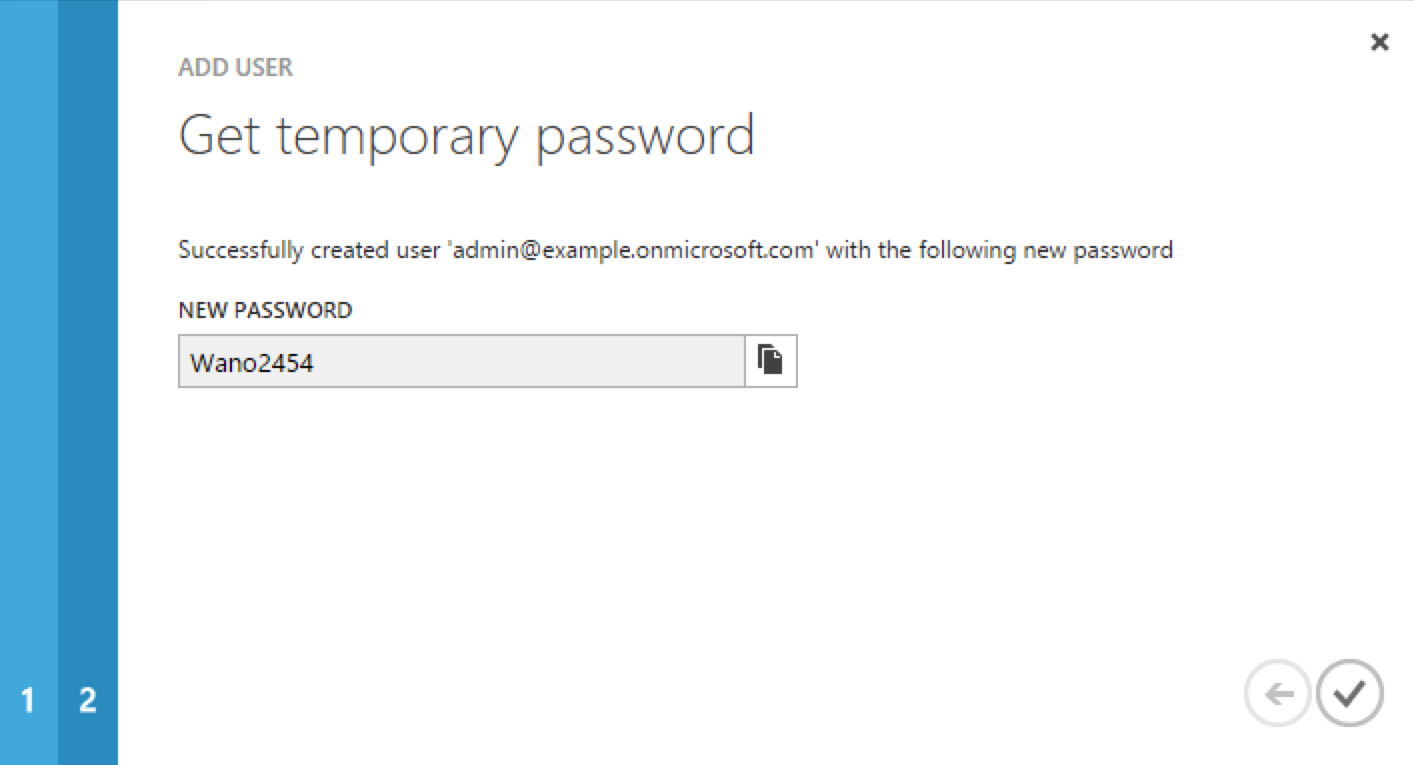
Because new administrative users are forced to change their password on first login, you should log in as this user to change the password.
Select the check mark to complete the new user creation process.
-
Select the username at the top right of the screen and select Sign-out to sign out of your Microsoft Azure account, then select SIGN IN > Use Another Account to sign in as your new administrative user.
-
Enter the email address of the new administrative user and select Continue.
-
Enter the temporary password that you received and select Sign In.
-
On the Update Your Password screen, enter a new password, then select Update password and sign in.
You now have a new administrative user account that the PowerShell scripts will use to access your Azure AD.
-
-
The Windows Azure AD Module for Windows PowerShell must be installed on the Windows host that connects to Azure.
If needed, install the Azure AD Module as described in the following Microsoft article.
-
Your Windows host must be able to contact your Azure AD deployment.
Verify the connection as follows:
-
Open a PowerShell window and type
Connect-Msolserviceat the command prompt. -
On the Enter Credentials screen, enter the credentials of the administrative account that you created for the Azure directory.
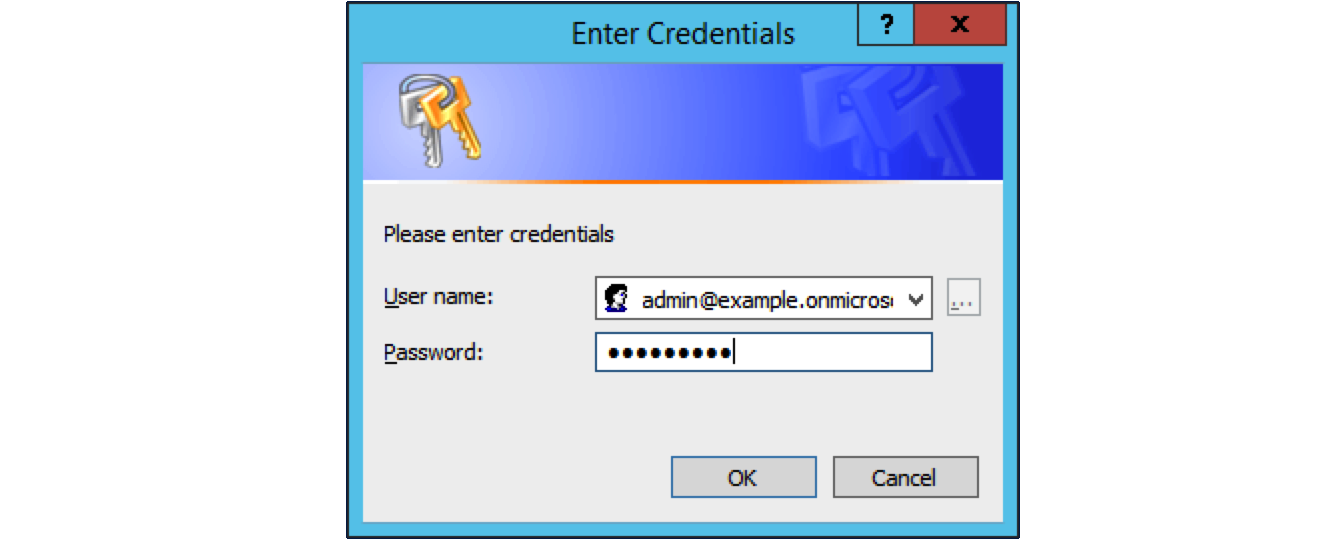
If the PowerShell command returns with no error, you have successfully connected to your remote Azure AD deployment.
-
-
The OpenICF .NET connector server must be installed on your Windows host.
If you have not yet installed the .NET connector server, follow the instructions in "Installing and Configuring a .NET Connector Server" in the Integrator’s Guide. The connector server must be running in legacy mode (see "Running the .NET Connector Server in Legacy Mode" in the Integrator’s Guide.
-
The PowerShell Connector Toolkit must be installed on your Windows host.
If you have not yet installed the PowerShell Connector Toolkit, follow the instructions in "PowerShell Connector Toolkit" in the Connectors Guide. In these instructions, you will use a command with a
/setkeyoption to create a password key for your .NET connector server. You will use that key in "Setting Up the PowerShell Azure AD Sample on OpenIDM".Before you continue, check that the OpenICF .NET connector server is still running. If it is not running, restart the connector server and check the logs. In some cases, Windows blocks the PowerShell connector dll. If the connector server fails to start, right-click on
MsPowerShell.Connector.dlland select Properties > Security. If you see the following text on that tab:This file came from another computer and might be blocked to help protect this computer.Select the Unblock button to unblock the connector dll. Then restart the connector server.
When all of the above elements are in place, you can proceed with running the sample, as described in "Setting Up the PowerShell Azure AD Sample on OpenIDM".
Setting Up the PowerShell Azure AD Sample on OpenIDM
This section assumes that OpenIDM is installed on the local UNIX/Linux machine.
-
On the Windows host, create a directory for the PowerShell scripts.
The sample connector configuration expects the scripts in the directory
C:/openidm/samples/powershell2AzureAD/tools/. If you put them in a different location, adjust your connector configuration accordingly.PS C:\> mkdir -Path openidm\samples\powershell2AzureAD\azureADScripts Directory: C:\openidm\samples\powershell2AzureAD Mode LastWriteTime Length Name ---- ------------- ------ ---- d---- 5/4/2016 11:26 AM azureADScripts PS C:\> -
Copy the PowerShell sample scripts from the OpenIDM instance on your UNIX/Linux host to the new directory on the remote Windows server.
One way to do this is to run an
scpclient, such aspscpin your Windows terminal. The following command copies the PowerShell scripts from the OpenIDM installation to the Windows machine:PS C:\> cd openidm\samples\powershell2AzureAD\tools PS C:\> pscp -r username@openidm-host:path/to/openidm/samples/powershell2AzureAD/azureADScripts/*.ps .The following scripts should now be in the
azureADScriptsdirectory on your Windows system:PS C:\openidm\samples\powershell2AzureAD\azureADScripts> ls Directory: C:\openidm\samples\powershell2AzureAD\azureADScripts Mode LastWriteTime Length Name ---- ------------- ------ ---- -a--- 5/4/2016 11:26 AM 7258 AzureADCreate.ps1 -a--- 5/4/2016 11:26 AM 3208 AzureADDelete.ps1 -a--- 5/4/2016 11:26 AM 6952 AzureADSchema.ps1 -a--- 5/4/2016 11:26 AM 8149 AzureADSearch.ps1 -a--- 5/4/2016 11:26 AM 2465 AzureADTest.ps1 -a--- 5/4/2016 11:26 AM 10840 AzureADUpdate.ps1You need to set the execution policy, as Windows by default does not trust downloaded scripts. For more information, see the following article: Using the Set-ExecutionPolicy Cmdlet You can then run the
Unblock-Filecmdlet to allow OpenIDM to run the scripts on your Windows system. For more information, see the following article: Unblock-File. -
On the Linux/UNIX machine on which OpenIDM is installed, navigate to the
path/to/openidm/samples/powershell2AzureADdirectory, and open theprovisioner.openicf.connectorinfoprovider.json conffile. -
Edit the remote connector server configuration file to match the settings of the remote .NET connector server.
Change the port to
8760, and the password (key) that you configured for the .NET connector server.The following example assumes that the .NET connector server is running on the host
198.51.100.1, listening on the default port, and configured with a secret key ofPassw0rd:{ "remoteConnectorServers" : [ { "name" : "dotnet", "host" : "198.51.100.1", "port" : 8760, "useSSL" : false, "timeout" : 0, "key" : "Passw0rd" } ] } -
Open the sample Azure AD PowerShell connector configuration file,
provisioner.openicf-azureadpowershell.json, and edit it to match your deployment. In particular, set the following properties in that file:"Host" : "198.51.100.1", "Port" : 8760, "Login" : "admin@example.onmicrosoft.com", "Password" : "Passw0rd",Host-
The hostname or IP address on which the .NET connector server is running.
Port-
The port on which the .NET connector server is listening (
8760by default in legacy mode). Login-
The username of the administrative account you created for the Azure directory in the previous section.
Password-
The password of the administrative account you created for the Azure directory in the previous section.
If you have placed the PowerShell scripts in a directory other than the default (
C:\openidm\samples\powershell2AzureAD\azureADScripts) you must also update those paths in the PowerShell connector configuration file. -
Start OpenIDM with the PowerShell AzureAD sample configuration:
$ cd path/to/openidm
$ ./startup.sh -p samples/powershell2AzureAD
Managing Users and Groups with the PowerShell Azure AD Sample
This section walks you through several REST commands that enable you to test the connector configuration, and perform basic CRUD operations in your Azure AD, through the PowerShell connector.
-
Test that the connector has been configured correctly and that the Azure AD resource can be reached:
$ curl \
 --header "X-OpenIDM-Username: openidm-admin" \
 --header "X-OpenIDM-Password: openidm-admin" \
 --request POST \
 "http://localhost:8080/openidm/system/azureadpowershell?_action=test"
{
  "name": "azureadpowershell",
  "enabled": true,
  "config": "config/provisioner.openicf/azureadpowershell",
  "objectTypes": [
    "__ALL__",
    "account",
    "group"
  ],
  "connectorRef": {
    "bundleName": "MsPowerShell.Connector",
    "connectorName": "Org.ForgeRock.OpenICF.Connectors.MsPowerShell.MsPowerShellConnector",
    "bundleVersion": "[1.4.3.0,2.0.0.0)"
  },
  "displayName": "PowerShell Connector ",
  "ok": true
}
If you see no response from this connector test, review any changes that you made to the
provisioner-openicf*files in your project’sconf/subdirectory. If you’ve made changes appropriate for your deployment, wait a couple of minutes and try again. -
Query the IDs of the existing users in your Azure AD deployment:
$ curl \ --header "X-OpenIDM-Username: openidm-admin" \ --header "X-OpenIDM-Password: openidm-admin" \ --request GET \ "http://localhost:8080/openidm/system/azureadpowershell/account?_queryId=query-all-ids" { "result": [ { "_id": "51560d42-e60e-49a8-855b-42b6eca35ca6", "UserPrincipalName": "admin@example.onmicrosoft.com" }, { "_id": "5e63b42f-c93a-466f-af86-f0a8d00f2491", "UserPrincipalName": "scarter@example.onmicrosoft.com" } ], ... } -
Use a query filter to return all details of all existing users in your Azure AD:
$ curl \ --header "X-OpenIDM-Username: openidm-admin" \ --header "X-OpenIDM-Password: openidm-admin" \ --request GET \ "http://localhost:8080/openidm/system/azureadpowershell/account?_queryFilter=true" { "result": [ { "_id": "51560d42-e60e-49a8-855b-42b6eca35ca6", "LiveId": "10033FFF96C5186D", "FirstName": "Barbara", "LastName": "Jensen", "UserPrincipalName": "admin@example.onmicrosoft.com", "AlternateEmailAddress" : [ "bjensen@example.com" ], "LastPasswordChangeTimestamp": "3/15/2016 11:02:19 AM", "DisplayName": "Barbara Jensen", "PasswordNeverExpires": false, "MobilePhone" : "+1 3602297105" }, { "_id": "5e63b42f-c93a-466f-af86-f0a8d00f2491", "LiveId": "1003BFFD96A4CFBA", "FirstName": "Sam", "LastName": "Carter", "UserPrincipalName": "scarter@example.onmicrosoft.com" "AlternateEmailAddresses": [ "scarter@example.com" ], "LastPasswordChangeTimestamp": "3/7/2016 1:09:31 PM", "DisplayName": "Sam Carter", "PasswordNeverExpires": false, "MobilePhone" : "+1 3602297105" } ], ...} -
Return details for a specific user account, by its
_id$ curl \ --header "X-OpenIDM-Username: openidm-admin" \ --header "X-OpenIDM-Password: openidm-admin" \ --request GET \ "http://localhost:8080/openidm/system/azureadpowershell/account/51560d42-e60e-49a8-855b-42b6eca35ca6" -
Create a new user in Azure AD. Substitute the domain for your Azure AD deployment for
example.onmicrosoft.com:$ curl \ --header "X-OpenIDM-Username: openidm-admin" \ --header "X-OpenIDM-Password: openidm-admin" \ --request POST \ --header "content-type: application/json" \ --data '{ "PasswordNeverExpires": false, "AlternateEmailAddresses": ["John.Bull@example.com"], "LastName": "Bull", "PreferredLanguage": "en-GB", "FirstName": "John", "UserPrincipalName": "Dev_John.Bull@example.onmicrosoft.com", "DisplayName": "John Bull" }' \ "http://localhost:8080/openidm/system/azureadpowershell/account?_action=create" { "_id" : "d4aac947-2037-4f29-b0f5-d404fd99938c", "LiveId" : "10037FFE979FB2C1", "FirstName" : "John", "LastName" : "Bull", "UserPrincipalName" : "Dev_John.Bull@example.onmicrosoft.com", "AlternateEmailAddresses" : [ "John.Bull@example.com" ], "LastPasswordChangeTimestamp" : "5/5/2016 3:52:43 PM", "DisplayName" : "John Bull", "PasswordNeverExpires" : false, "PreferredLanguage" : "en-GB" }Rerun the same command. You should see the following error:
{ "code" : 500, "reason" : "Internal Server Error", "message" : "Operation CREATE failed with ConnectorException on system object: Dev_John.Bull@example.onmicrosoft.com" } -
Update the user entry that you have just created with a patch request. Include the
_idof the new user in the URL. Save that_idvalue for a later step.The following example updates the user’s display name:
$ curl \ --header "X-OpenIDM-Username: openidm-admin" \ --header "X-OpenIDM-Password: openidm-admin" \ --header "if-match: *" \ --header "content-type: application/json" \ --request PATCH \ --data '[ { "operation": "replace", "field": "DisplayName", "value": "John P. Bull" } ]' \ "http://localhost:8080/openidm/system/azureadpowershell/account/d4aac947-2037-4f29-b0f5-d404fd99938c" { "_id" : "d4aac947-2037-4f29-b0f5-d404fd99938c", "LiveId" : "10037FFE979FB2C1", "FirstName" : "John", "LastName" : "Bull", "UserPrincipalName" : "Dev_John.Bull@mikejangfr.onmicrosoft.com", "AlternateEmailAddresses" : [ "John.Bull@example.com" ], "LastPasswordChangeTimestamp" : "5/5/2016 3:52:43 PM", "DisplayName" : "John P. Bull", "PasswordNeverExpires" : false, "PreferredLanguage" : "en-GB" } -
Now create a group:
$ curl \ --header "X-OpenIDM-Username: openidm-admin" \ --header "X-OpenIDM-Password: openidm-admin" \ --header 'content-type: application/json' \ --request POST \ --data '{ "DisplayName" : "Dev Testers group", "Description" : "Description of a Dev Group" }' \ 'http://localhost:8080/openidm/system/azureadpowershell/group?_action=create' { "_id" : "9091be74-f37e-408d-9198-2d2b5f4b4cdd", "Members" : [ ], "DisplayName" : "Dev Testers Group", "GroupType" : "Security", "Description" : "Description of a Dev Group", "objectId" : "9091be74-f37e-408d-9198-2d2b5f4b4cdd" } -
Add your recently created user to this new group. Use the
_idof that user, as theObjectId. Use the_idof the newly created group in the endpoint:$ curl \ --header "X-OpenIDM-Username: openidm-admin" \ --header "X-OpenIDM-Password: openidm-admin" \ --header "Content-Type: application/json" \ --header "If-Match: *" \ --request PUT \ --data '{ "Members" : [ { "ObjectId" : "d4aac947-2037-4f29-b0f5-d404fd99938c" } ] }' \ "http://localhost:8080/openidm/system/azureadpowershell/group/9091be74-f37e-408d-9198-2d2b5f4b4cdd" { "_id" : "9091be74-f37e-408d-9198-2d2b5f4b4cdd", "Members" : [ { "ObjectId" : "d4aac947-2037-4f29-b0f5-d404fd99938c", "DisplayName" : "John P. Bull", "GroupMemberType" : "User", "EmailAddress" : "Dev_John.Bull@example.onmicrosoft.com" } ], "DisplayName" : "Testing Devs Group", "GroupType" : "Security", "Description" : "Description of a Dev Group", "objectId" : "9091be74-f37e-408d-9198-2d2b5f4b4cdd" } -
Confirm the result, by the
_idof the group:$ curl \ --header "X-OpenIDM-Username: openidm-admin" \ --header "X-OpenIDM-Password: openidm-admin" \ --request GET \ "http://localhost:8080/openidm/system/azureadpowershell/group/9091be74-f37e-408d-9198-2d2b5f4b4cdd" -
Update a label for the group. Use the same group
_id:$ curl \ --header "X-OpenIDM-Username: openidm-admin" \ --header "X-OpenIDM-Password: openidm-admin" \ --header "Content-Type: application/json" \ --header "If-Match: *" \ --request PUT \ --data '{ "_id" : "9091be74-f37e-408d-9198-2d2b5f4b4cdd", "Description" : "Dev Masters Group", "Members" : [ { "ObjectId" : "d4aac947-2037-4f29-b0f5-d404fd99938c", "DisplayName" : "John P. Bull", "GroupMemberType" : "User", "EmailAddress" : "Dev_John.Bull@example.onmicrosoft.com" } ], "DisplayName" : "Testing Devs Group", "GroupType" : "Security", "objectId" : "9091be74-f37e-408d-9198-2d2b5f4b4cdd" }' \ "http://localhost:8080/openidm/system/azureadpowershell/group/9091be74-f37e-408d-9198-2d2b5f4b4cdd"You should see the new
Descriptionin the output. -
Remove the user from the new group. Use the same group
_idNote how theMembersin the--datablock, and the output, are blank:$ curl \ --header "X-OpenIDM-Username: openidm-admin" \ --header "X-OpenIDM-Password: openidm-admin" \ --header "Content-Type: application/json" \ --header "If-Match: *" \ --request PUT \ --data '{ "_id" : "9091be74-f37e-408d-9198-2d2b5f4b4cdd", "Description" : "Dev Masters Group", "Members" : [ ], "DisplayName" : "Testing Devs Group", "GroupType" : "Security", "objectId" : "9091be74-f37e-408d-9198-2d2b5f4b4cdd" }' \ "http://localhost:8080/openidm/system/azureadpowershell/group/9091be74-f37e-408d-9198-2d2b5f4b4cdd" { "_id" : "9091be74-f37e-408d-9198-2d2b5f4b4cdd", "Members" : [ ], "DisplayName" : "Testing Devs Group", "GroupType" : "Security", "Description" : "Dev Masters Group", "objectId" : "9091be74-f37e-408d-9198-2d2b5f4b4cdd" } -
Delete the user that you created earlier:
$ curl \
--header "X-OpenIDM-Username: openidm-admin" \
--header "X-OpenIDM-Password: openidm-admin" \
--request DELETE \
"http://localhost:8080/openidm/system/azureadpowershell/account/d4aac947-2037-4f29-b0f5-d404fd99938c"
To verify that the user was deleted, run the REST call to
query-all-idsshown earlier in this section. The ID associated with that user should have been removed.
Reconciling Users Between OpenIDM and Azure AD
In this section, you’ll run commands that demonstrate reconciliation mappings between OpenIDM managed users and your remote instance of Azure AD.
In preparation, create a new user on the Azure AD system:
$ curl \
--header "X-OpenIDM-Username: openidm-admin" \
--header "X-OpenIDM-Password: openidm-admin" \
--request POST \
--header "content-type: application/json" \
--data '{
    "UserPrincipalName": "CEO@example.onmicrosoft.com",
    "LastName": "Officer",
    "FirstName": "Chief",
    "DisplayName": "Chief Executive Officer",
    "PasswordNeverExpires": false
}' \
"http://localhost:8080/openidm/system/azureadpowershell/account?_action=create"
In the steps that follow, you’ll run reconciliations to see what happens to that user in the OpenIDM data store.
-
Review the list of current managed users in the OpenIDM repository, filtered for the
userNamethat starts with (sw) CEO:$ curl \ --header "X-OpenIDM-Username: openidm-admin" \ --header "X-OpenIDM-Password: openidm-admin" \ --request GET \ "http://localhost:8080/openidm/managed/user?_queryFilter=userName+sw+'CEO'"Until you reconcile the Azure AD repository to OpenIDM, the output should be empty:
{ "result" : [ ], "resultCount" : 0, "pagedResultsCookie" : null, "totalPagedResultsPolicy" : "NONE", "totalPagedResults" : -1, "remainingPagedResults" : -1 } -
Run a reconciliation from Azure AD to OpenIDM:
$ curl \ --header "X-OpenIDM-Username: openidm-admin" \ --header "X-OpenIDM-Password: openidm-admin" \ --request POST \ "http://localhost:8080/openidm/recon?_action=recon&mapping=systemAzureadpowershellAccount_managedUser&waitForCompletion=true" { "_id" : "71811f1c-2ec0-47ae-ba47-d62c7094201b-1105", "state" : "SUCCESS" } -
Now rerun the command to list of current managed users in the OpenIDM repository, filtered for the
userNamethat starts with (sw) CEO:$ curl \ --header "X-OpenIDM-Username: openidm-admin" \ --header "X-OpenIDM-Password: openidm-admin" \ --request GET \ "http://localhost:8080/openidm/managed/user?_queryFilter=userName+sw+'CEO'" { "result" : [ { "_id" : "3a012a60-19c2-4fb4-99cc-0bb82dc4588c", "_rev" : "1", "userName" : "CEO@example.onmicrosoft.com", "mail" : "CEO@example.onmicrosoft.com", "sn" : "Officer", "givenName" : "Chief", "accountStatus" : "active", "effectiveRoles" : [ ], "effectiveAssignments" : [ ] } ], "resultCount" : 1, "pagedResultsCookie" : null, "totalPagedResultsPolicy" : "NONE", "totalPagedResults" : -1, "remainingPagedResults" : -1 } -
Delete that CEO user from the Azure AD system, by the
_idshown earlier when you searched that system:$ curl \ --header "X-OpenIDM-Username: openidm-admin" \ --header "X-OpenIDM-Password: openidm-admin" \ --request DELETE \ "http://localhost:8080/openidm/system/azureadpowershell/account/3a012a60-19c2-4fb4-99cc-0bb82dc4588c"If successful, you’ll see the data for the CEO user one last time.
-
Run a second reconciliation from the remote Azure AD repository to OpenIDM:
$ curl \ --header "X-OpenIDM-Username: openidm-admin" \ --header "X-OpenIDM-Password: openidm-admin" \ --request POST \ "http://localhost:8080/openidm/recon?_action=recon&mapping=systemAzureadpowershellAccount_managedUser&waitForCompletion=true" -
Rerun the command to search the OpenIDM repository for a
userNamethat starts with 'CEO' one more time, to confirm that user has been reconciled out of the OpenIDM repository:$ curl \ --header "X-OpenIDM-Username: openidm-admin" \ --header "X-OpenIDM-Password: openidm-admin" \ --request GET \ "http://localhost:8080/openidm/managed/user?_queryFilter=userName+sw+'CEO'"