Managing Authentication, Authorization and Role-Based Access Control
OpenIDM provides a flexible authentication and authorization mechanism, based on REST interface URLs and on managed roles. This chapter describes how to configure the supported authentication modules, and how roles are used to support authentication, authorization, and access control.
OpenIDM Authentication
OpenIDM does not allow access to the REST interface without authentication. User self-registration requires anonymous access. For this purpose, OpenIDM includes an anonymous user, with the password anonymous. For more information, see "Internal Users".
OpenIDM supports an enhanced authentication mechanism over the REST interface, that is compatible with the AJAX framework. Although OpenIDM understands the authorization header of the HTTP basic authorization contract, it deliberately does not utilize the full contract. In other words, it does not cause the browser built in mechanism to prompt for username and password. However, OpenIDM does understand utilities such as curl that can send the username and password in the Authorization header.
In general, the HTTP basic authentication mechanism does not work well with client side web applications, and applications that need to render their own login screens. Because the browser stores and sends the username and password with each request, HTTP basic authentication has significant security vulnerabilities. OpenIDM therefore supports sending the username and password via the authorization header, and returns a token for subsequent access.
This document uses the OpenIDM authentication headers in all REST examples, for example:
$ curl \
 --header "X-OpenIDM-Username: openidm-admin" \
 --header "X-OpenIDM-Password: openidm-admin" \
 ...
For more information about the OpenIDM authentication mechanism, see "Use Message Level Security".
Authenticating OpenIDM Users
OpenIDM stores two types of users in its repository - internal users and managed users. The way in which both of these user types are authenticated is defined in your project’s conf/authentication.json file.
Internal Users
OpenIDM creates two internal users by default: anonymous and openidm-admin. These internal user accounts are separated from other user accounts to protect them from any reconciliation or synchronization processes.
OpenIDM stores internal users and their role membership in a table in the repository. The two default internal users have the following functions:
- anonymous
-
This user enables anonymous access to OpenIDM, for users who do not have their own accounts. The anonymous user has limited rights within OpenIDM. By default, the anonymous user has the
openidm-regrole, and can be used to allow self-registration. For more information about self-registration, see "The End User and Commons User Self-Service". - openidm-admin
-
This user serves as the top-level administrator. After installation, the
openidm-adminuser has full access, and provides a fallback mechanism in the event that other users are locked out of their accounts. Do not useopenidm-adminfor regular tasks. Under normal circumstances, theopenidm-adminaccount does not represent a regular user, so audit log records for this account do not represent the actions of any real person.The default password for the
openidm-adminuser (alsoopenidm-admin) is not encrypted, and is not secure. In production environments, you must change this password to a more secure one, as described in the following section. The new password will be encoded using a salted hash algorithm, when it is changed.
Managing Internal Users Over REST
Like any other user in the repository, you can manage internal users over the REST interface.
To list the internal users over REST, query the repo endpoint as follows:
$ curl \
 --header "X-OpenIDM-Username: openidm-admin" \
 --header "X-OpenIDM-Password: openidm-admin" \
 --request GET  \
 "http://localhost:8080/openidm/repo/internal/user?_queryId=query-all-ids"
{
  "result": [
    {
      "_id": "openidm-admin",
      "_rev": "1"
    },
    {
      "_id": "anonymous",
      "_rev": "1"
    }
  ],
  "resultCount": 2,
  "pagedResultsCookie": null,
  "totalPagedResultsPolicy": "NONE",
  "totalPagedResults": -1,
  "remainingPagedResults": -1
}
To query the details of an internal user, include the user’s ID in the request, for example:
$ curl \
 --header "X-OpenIDM-Username: openidm-admin" \
 --header "X-OpenIDM-Password: openidm-admin" \
 --request GET  \
 "http://localhost:8080/openidm/repo/internal/user/openidm-admin"
{
  "_id": "openidm-admin",
  "_rev": "1",
  "roles": [
    {
      "_ref": "repo/internal/role/openidm-admin"
    },
    {
      "_ref": "repo/internal/role/openidm-authorized"
    }
  ],
  "userName": "openidm-admin",
  "password": "openidm-admin"
}
To change the password of the default administrative user, send a PUT request to the user object. The following example changes the password of the openidm-admin user to Passw0rd:
$ curl \
 --header "Content-Type: application/json" \
 --header "X-OpenIDM-Username: openidm-admin" \
 --header "X-OpenIDM-Password: openidm-admin" \
 --request PUT \
 --data '{
     "_id": "openidm-admin",
     "roles": [
         {
             "_ref": "repo/internal/role/openidm-admin"
         },
         {
             "_ref": "repo/internal/role/openidm-authorized"
         }
     ],
     "userName": "openidm-admin",
     "password": "Passw0rd"
 }' \
 "http://localhost:8080/openidm/repo/internal/user/openidm-admin"
{
  "_id": "openidm-admin",
  "_rev": "2",
  "roles": [
    {
      "_ref": "repo/internal/role/openidm-admin"
    },
    {
      "_ref": "repo/internal/role/openidm-authorized"
    }
  ],
  "userName": "openidm-admin",
  "password": {
    "$crypto": {
      "value": {
        "algorithm": "SHA-256",
        "data": "spKRPPYpDFZZWuJsOQa03vT2Gf+pFYUW8Zj6eCXuvMj19wZasYmdI2sCOrmmxiUQ"
      },
      "type": "salted-hash"
    }
  }
}
Managed Users
External users that are managed by OpenIDM are known as managed users.
The table in which managed users are stored depends on the type of repository. For JDBC repositories, OpenIDM stores managed users in the managed objects table, named managedobjects, and indexes those objects in a table named managedobjectproperties.
For an OrientDB repository, managed objects are stored in the table managed_user.
OpenIDM provides RESTful access to managed users, at the context path /openidm/managed/user. For more information, see "Managing Users Over REST".
Authenticating Internal and Managed Users
By default, the attribute names that are used to authenticate managed and internal users are username and password, respectively. However, you can explicitly define the properties that constitute usernames, passwords or roles with the propertyMapping object in the conf/authentication.json file. The following excerpt of the authentication.json file shows the default property mapping object:
...
    "propertyMapping" : {
        "authenticationId" : "username",
        "userCredential" : "password",
        "userRoles" : "roles"
    },
 ...
If you change the attribute names that are used for authentication, you must adjust the following authentication queries (defined in the repository configuration file, openidm/conf/repo.repo-type.json).
Two queries are defined by default.
credential-internaluser-query-
This query uses the
usernameattribute for login, for internal users. For example, the followingcredential-internaluser-queryis defined in the default repository configuration file for a MySQL repository."credential-internaluser-query" : "SELECT objectid, pwd, roles FROM ${_dbSchema}.${_table} WHERE objectid = ${username}", credential-query-
This query uses the
usernameattribute for login, for managed users. For example, the followingcredential-queryis defined in the default repository configuration file for a MySQL repository."credential-query" : "SELECT * FROM ${_dbSchema}.${_table} WHERE objectid = ${username} and accountStatus = 'active'",
The query that is used for a particular resource is specified by the queryId property in the authentication.json file. The following sample excerpt of that file shows that the credential-query is used when validating managed user credentials.
{
    "queryId" : "credential-query",
    "queryOnResource" : "managed/user",
...
}
Supported Authentication and Session Modules
The authentication configuration is defined in conf/authentication.json. This file configures the methods by which a user request is authenticated. It includes both session and authentication module configuration.
You can review and configure supported modules in the Admin UI. To do so, log into https://localhost:8443/admin, and select Configure > System Preferences > Authentication.
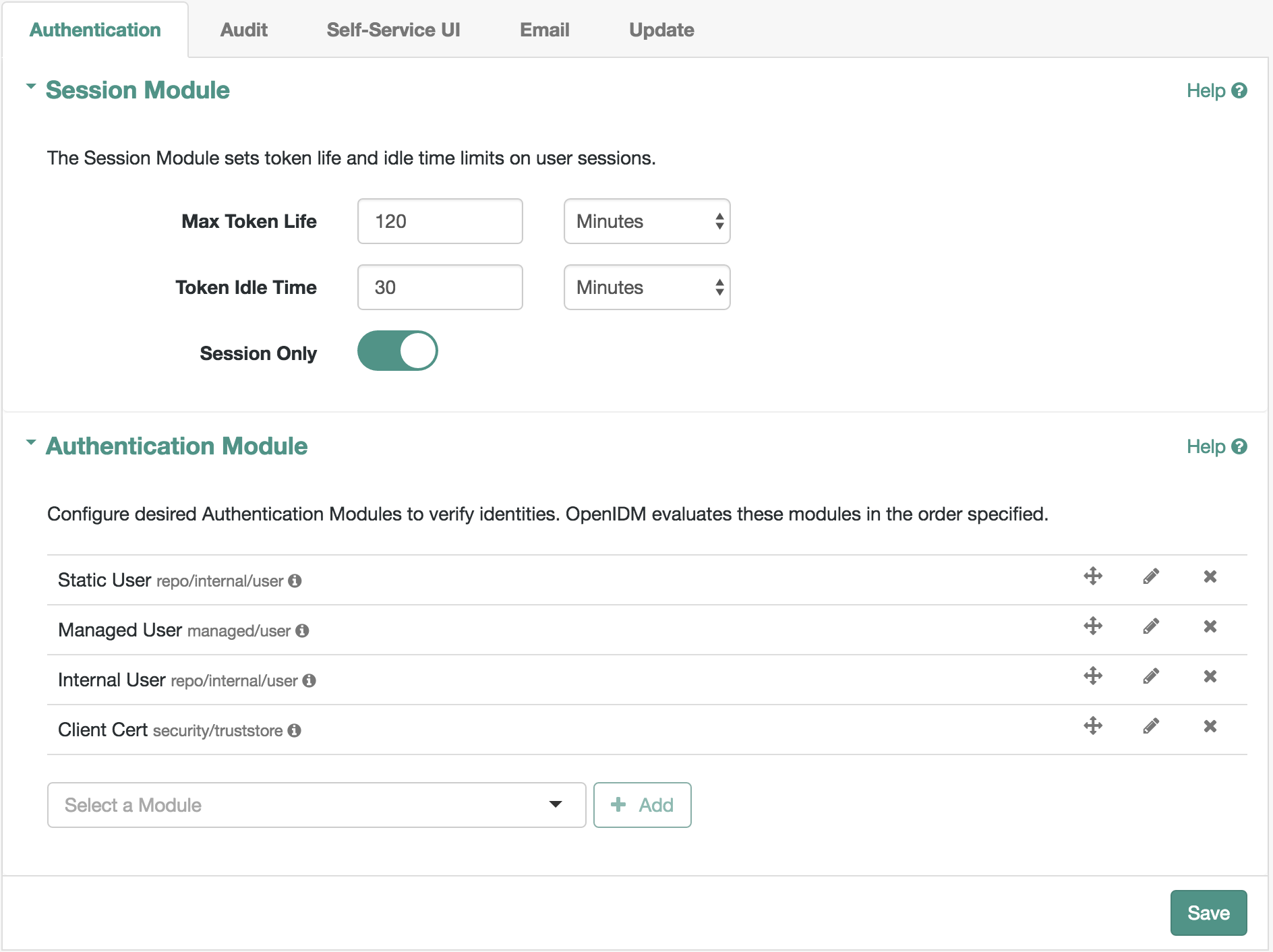
Supported Session Module
At this time, OpenIDM includes one supported session module. The JSON Web Token session module configuration specifies keystore information, and details about the session lifespan. The default JWT_SESSION configuration is as follows:
"sessionModule" : {
    "name" : "JWT_SESSION",
        "properties" : {
            "keyAlias" : "&{openidm.https.keystore.cert.alias}",
            "privateKeyPassword" : "&{openidm.keystore.password}",
            "keystoreType" : "&{openidm.keystore.type}",
            "keystoreFile" : "&{openidm.keystore.location}",
            "keystorePassword" : "&{openidm.keystore.password}",
            "sessionOnly" : true
            "isHttpOnly" : true
            "maxTokenLifeMinutes" : "120",
            "tokenIdleTimeMinutes" : "30"
        }
},|
If you’re working with the OPENAM_SESSION module, change the token lifetime properties as shown here, to match the session token lifetime associated with OpenAM. |
For more information about the JWT_SESSION module, see the following Javadoc page: Class JwtSessionModule.
Supported Authentication Modules
OpenIDM evaluates modules in the order shown in the authentication.json file for your project. When OpenIDM finds a module to authenticate a user, it does not evaluate subsequent modules.
You can also configure the order of authentication modules in the Admin UI. After logging in, click Configure > System Preferences > Authentication. The following figure illustrates how you might include the IWA module in the Admin UI.
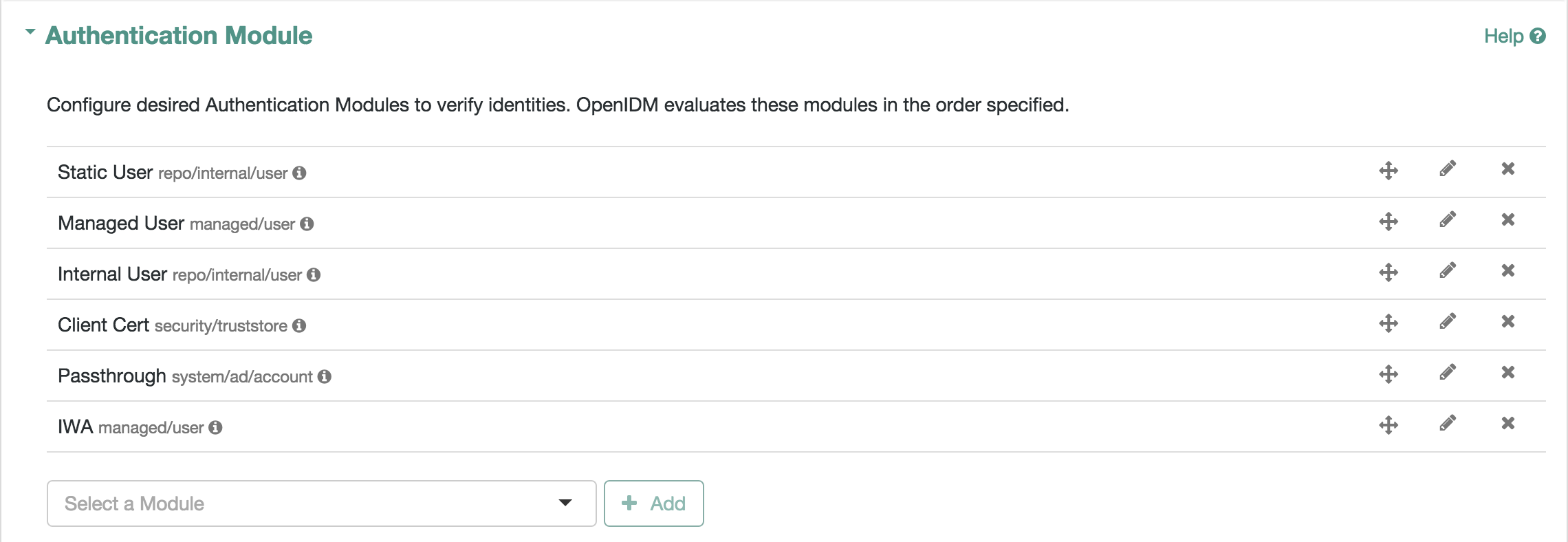
You must prioritize the authentication modules that query OpenIDM resources. Prioritizing the modules that query external resources might lead to authentication problems for internal users such as openidm-admin.
- STATIC_USER
-
STATIC_USERauthentication provides an anonymous authentication mechanism that bypasses any database lookups if the headers in a request indicate that the user isanonymous. The following sample REST call usesSTATIC_USERauthentication in the self-registration process:$ curl \ --header "X-OpenIDM-Password: anonymous" \ --header "X-OpenIDM-Username: anonymous" \ --header "Content-Type: application/json" \ --data '{ "userName":"steve", "givenName":"Steve", "sn":"Carter", "telephoneNumber":"0828290289", "mail":"scarter@example.com", "password":"Passw0rd" }' \ --request POST \ "http://localhost:8080/openidm/managed/user/?_action=create"Note that this is not the same as an anonymous request that is issued without headers.
Authenticating with the
STATIC_USERmodule avoids the performance cost of reading the database for self-registration, certain UI requests, and other actions that can be performed anonymously. Authenticating the anonymous user with theSTATIC_USERmodule is identical to authenticating the anonymous user with theINTERNAL_USERmodule, except that the database is not accessed. So,STATIC_USERauthentication provides an authentication mechanism for the anonymous user that avoids the database lookups incurred when usingINTERNAL_USER.A sample
STATIC_USERauthentication configuration follows:{ "name" : "STATIC_USER", "enabled" : true, "properties" : { "propertyMapping" : "{}", "queryOnResource" : "repo/internal/user", "username" : "anonymous", "password" : "anonymous", "defaultUserRoles" : [ "openidm-reg" ], "augmentSecurityContext" : null } } - TRUSTED_ATTRIBUTE
-
The
TRUSTED_ATTRIBUTEauthentication module allows you to configure OpenIDM to trust theHttpServletRequestattribute of your choice. You can configure it by adding theTRUSTED_ATTRIBUTEmodule to yourauthentication.jsonfile, as shown in the following code block:... { "name" : "TRUSTED_ATTRIBUTE", "properties" : { "queryOnResource" : "managed/user", "propertyMapping" : { "authenticationId" : "username", "userRoles" : "authzRoles" }, "defaultUserRoles" : [ ], "authenticationIdAttribute" : "X-ForgeRock-AuthenticationId", "augmentSecurityContext" : { "type" : "text/javascript", "file" : "auth/populateRolesFromRelationship.js" } }, "enabled" : true } ...TRUSTED_ATTRIBUTEauthentication queries themanaged/userrepository, and allows authentication when credentials match, based on theusernameandauthzRolesassigned to that user, specifically theX-ForgeRock-AuthenticationIdattribute.To see how you can configure this with OpenIDM, see "The Trusted Servlet Filter Sample" in the Samples Guide.
- MANAGED_USER
-
MANAGED_USERauthentication queries the repository, specifically themanaged/userobjects, and allows authentication if the credentials match. The default configuration uses theusernameandpasswordof the managed user to authenticate, as shown in the following sample configuration:{ "name" : "MANAGED_USER", "enabled" : true, "properties" : { "queryId" : "credential-query", "queryOnResource" : "managed/user", "propertyMapping" : { "authenticationId" : "username", "userCredential" : "password", "userRoles" : "roles" }, "defaultUserRoles" : [ ] } }, - INTERNAL_USER
-
INTERNAL_USERauthentication queries the repository, specifically therepo/internal/userobjects, and allows authentication if the credentials match. The default configuration uses theusernameandpasswordof the internal user to authenticate, as shown in the following sample configuration:{ "name" : "INTERNAL_USER", "enabled" : true, "properties" : { "queryId" : "credential-internaluser-query", "queryOnResource" : "repo/internal/user", "propertyMapping" : { "authenticationId" : "username", "userCredential" : "password", "userRoles" : "roles" }, "defaultUserRoles" : [ ] } }, - CLIENT_CERT
-
The client certificate module,
CLIENT_CERT, provides authentication by validating a client certificate, transmitted via an HTTP request. OpenIDM compares the subject DN of the request certificate with the subject DN of the truststore.A sample
CLIENT_CERTauthentication configuration follows:{ "name" : "CLIENT_CERT", "enabled" : true, "properties" : { "queryOnResource" : "security/truststore", "defaultUserRoles" : [ "openidm-cert" ], "allowedAuthenticationIdPatterns" : [ ] } },The
allowedAuthenticationIdPatternsfilter enables you to specify an array of usernames or username patterns that will be accepted for authentication. If this property is empty, any username can authenticate.For detailed options, see "Configuring the CLIENT_CERT Authentication Module".
The modules that follow point to external systems. In the authentication.json file, you should generally include these modules after any modules that query internal OpenIDM resources.
- PASSTHROUGH
-
PASSTHROUGHauthentication queries an external system, such as an LDAP server, and allows authentication if the provided credentials match those in the external system. The following sample configuration shows pass-through authentication using the user objects in the system endpointsystem/ldap/account. For more information on pass-through authentication, see "Configuring Pass-Through Authentication".
- OPENAM_SESSION
-
The
OPENAM_SESSIONmodule enables you to protect an OpenIDM deployment with Open Identity Platform’s OpenAM product. For an example of how you might use theOPENAM_SESSIONmodule, see "Full Stack Sample - Using OpenIDM in the Open Identity Platform" in the Samples Guide.For detailed options, see "OPENAM_SESSION Module Configuration Options".
The use case is when you need to integrate IDM endpoints behind the scenes within other applications, such as with a company intranet portal. In that configuration, users would log into OpenAM to access the portal; at that point, their sessions would use the OpenAM SSO cookie, also known as
iPlanetDirectoryPro. For more information, see the OpenAM Administration Guide section on Session Cookies.If you use the
OPENAM_SESSIONtoken, you’ll need to set aJWT_SESSIONmaximum token lifetime of 5 seconds, to match the corresponding token session lifetime in OpenAM. For more information on theJWT_SESSIONmodule, see the following section: Supported Session ModulesEnsure that at least one user in any shared OpenDJ repository has an
openidm-adminrole.Set up logins with OpenAM, to work with the related login session cookie, known as
iPlanetDirectoryPro. - IWA
-
The IWA module enables users to authenticate by using Integrated Windows Authentication (IWA), rather than by providing a username and password. For information about configuring the IWA module with OpenIDM, see "Configuring IWA Authentication".
Configuring Pass-Through Authentication
OpenIDM 6.2 supports a pass-through authentication mechanism. With pass-through authentication, the credentials included with the REST request are validated against those stored in a remote system, such as an LDAP server.
The following excerpt of an authentication.json shows a pass-through authentication configuration for an LDAP system.
"authModules" : [
    {
       "name" : "PASSTHROUGH",
       "enabled" : true,
       "properties" : {
          "augmentSecurityContext": {
             "type" : "text/javascript",
             "file" : "auth/populateAsManagedUser.js"
          },
          "queryOnResource" : "system/ldap/account",
          "propertyMapping" : {
             "authenticationId" : "uid",
             "groupMembership" : "memberOf"
          },
          "groupRoleMapping" : {
             "openidm-admin" : ["cn=admins"]
          },
          "managedUserLink" : "systemLdapAccounts_managedUser",
          "defaultUserRoles" : [
             "openidm-authorized"
          ]
       },
    },
    ...
 ]
For more information on authentication module properties, see the following: "Authentication and Session Module Configuration Details".
The OpenIDM samples, described in "Overview of the OpenIDM Samples" in the Samples Guide, include several examples of pass-through authentication configuration. Samples 2, 2b, 2c, and 2d use an external LDAP system for authentication. Sample 3 authenticates against a SQL database. Sample 6 authenticates against an Active Directory server. The scriptedrest2dj sample uses a scripted REST connector to authenticate against an OpenDJ server.
Configuring IWA Authentication
When OpenIDM is configured for IWA authentication, client browsers can authenticate to OpenIDM using a Kerberos ticket.
To enable Kerberos authentication, OpenIDM needs a specific Kerberos user account in Active Directory, and a keytab file that maps the service principal to this user account. When this is set up, the client presents OpenIDM with a Kerberos ticket. If OpenIDM can validate that ticket, the client is granted an encrypted session key for the OpenIDM service. That client can then access OpenIDM without providing a username or password, for the duration of the session.
The complete Kerberos authentication process is shown in the following diagram:
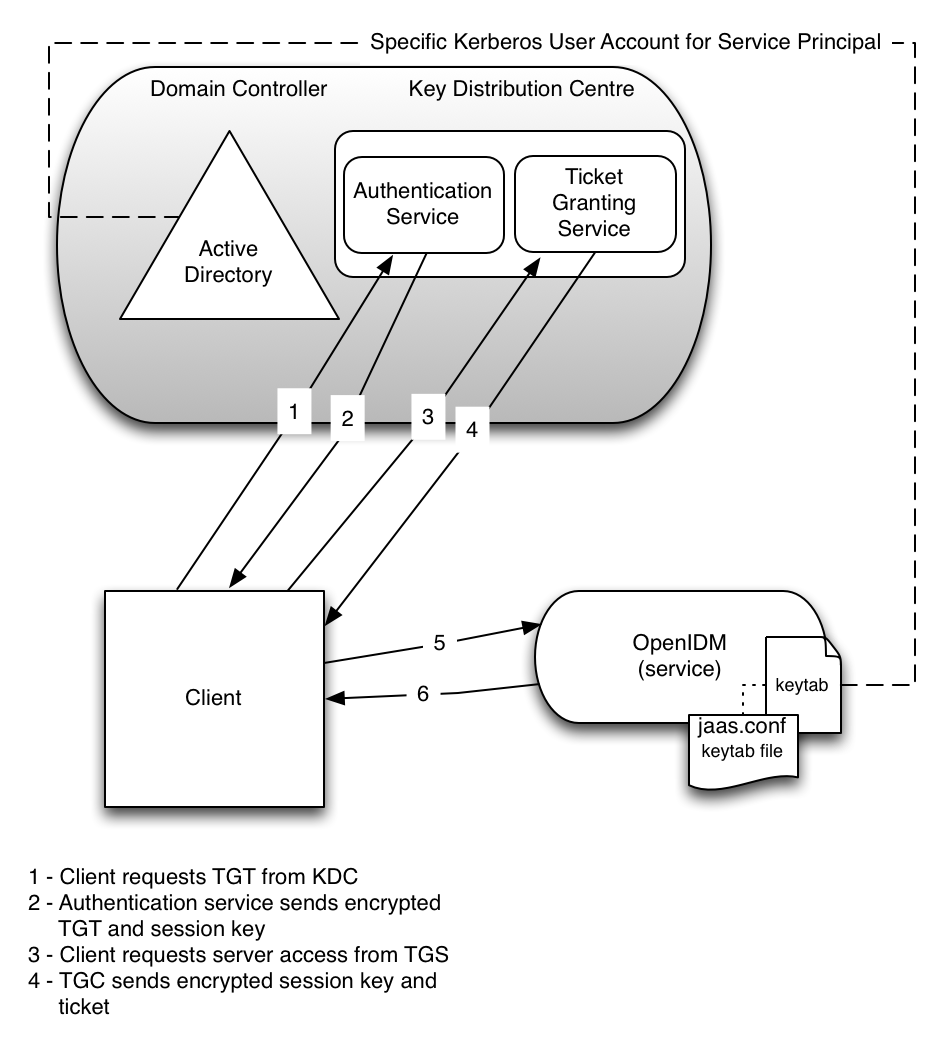
This section assumes that you have an active Kerberos server acting as a Key Distribution Center (KDC). If you are running Active Directory in your deployment, that service includes a Kerberos KDC by default.
The steps required to set up IWA with OpenIDM are described in the following sections:
Creating a Specific Kerberos User Account for OpenIDM
To authenticate OpenIDM to the Kerberos KDC you must create a specific user entry in Active Directory whose credentials will be used for this authentication. This Kerberos user account must not be used for anything else.
The Kerberos user account is used to generate the Kerberos keytab. If you change the password of this Kerberos user after you have set up IWA authentication, you must update the keytab accordingly.
Create a new user in Active Directory as follows:
-
Select New > User and provide a login name for the user that reflects its purpose, for example, openidm@example.com.
-
Enter a password for the user. Check the Password never expires option and leave all other options unchecked.
If the password of this user account expires, and is reset, you must update the keytab with the new password. It is therefore easier to create an account with a password that does not expire.
-
Click Finish to create the user.
Creating a Keytab File
A Kerberos keytab file (krb5.keytab) enables OpenIDM to validate the Kerberos tickets that it receives from client browsers. You must create a Kerberos keytab file for the host on which OpenIDM is running.
This section describes how to use the ktpass command, included in the Windows Server toolkit, to create the keytab file. Run the ktpass command on the Active Directory domain controller. Pay close attention to the use of capitalization in this example because the keytab file is case-sensitive. Note that you must disable UAC or run the ktpass command as a user with administration privileges.
The following command creates a keytab file (named openidm.HTTP.keytab) for the OpenIDM service located at openidm.example.com.
C:\Users\Administrator>ktpass ^
 -princ HTTP/openidm.example.com@EXAMPLE.COM ^
 -mapUser EXAMPLE\openidm ^
 -mapOp set ^
 -pass Passw0rd1 ^
 -crypto ALL
 -pType KRB5_NT_PRINCIPAL ^
 -kvno 0 ^
 -out openidm.HTTP.keytab

Targeting domain controller: host.example.com
Using legacy password setting method
Successfully mapped HTTP/openidm.example.com to openidm.
Key created.
Output keytab to openidm.HTTP.keytab:
Keytab version: 0x502
keysize 79 HTTP/openidm.example.com@EXAMPLE.COM ptype 1 (KRB5_NT_PRINCIPAL)
 vno 0 etype 0x1 (DES-CBC-CRC) keylength 8 (0x73a28fd307ad4f83)
keysize 79 HTTP/openidm.example.com@EXAMPLE.COM ptype 1 (KRB5_NT_PRINCIPAL)
 vno 0 etype 0x3 (DES-CBC-MD5) keylength 8 (0x73a28fd307ad4f83)
keysize 87 HTTP/openidm.example.com@EXAMPLE.COM ptype 1 (KRB5_NT_PRINCIPAL)
 vno 0 etype 0x17 (RC4-HMAC) keylength 16 (0xa87f3a337d73085c45f9416be5787d86)
keysize 103 HTTP/openidm.example.com@EXAMPLE.COM ptype 1 (KRB5_NT_PRINCIPAL)
 vno 0 etype 0x12 (AES256-SHA1) keylength 32 (0x6df9c282abe3be787553f23a3d1fcefc
  6fc4a29c3165a38bae36a8493e866d60)
keysize 87 HTTP/openidm.example.com@EXAMPLE.COM ptype 1 (KRB5_NT_PRINCIPAL)
 vno 0 etype 0x11 (AES128-SHA1) keylength 16 (0xf616977f071542cd8ef3ff4e2ebcc09c)
The ktpass command takes the following options:
-
-princspecifies the service principal name in the formatservice/host-name@realmIn this example (
HTTP/openidm.example.com@EXAMPLE.COM), the client browser constructs an SPN based on the following:-
The service name (HTTP).
The service name for SPNEGO web authentication must be HTTP.
-
The FQDN of the host on which OpenIDM runs (
openidm.example.com).This example assumes that users will access OpenIDM at the URL
https://openidm.example.com:8443. -
The Kerberos realm name (
EXAMPLE.COM).The realm name must be in upper case. A Kerberos realm defines the area of authority of the Kerberos authentication server.
-
-
-mapUserspecifies the name of the Kerberos user account to which the principal should be mapped (the account that you created in "Creating a Specific Kerberos User Account for OpenIDM"). The username must be specified in down-level logon name format (DOMAIN\UserName). In our example, the Kerberos user name isEXAMPLE\openidm. -
-mapOpspecifies how the Kerberos user account is linked. Usesetto set the first user name to be linked. The default (add) adds the value of the specified local user name if a value already exists. -
-passspecifies a password for the principal user name. Use "*" to prompt for a password. -
-cryptoSpecifies the cryptographic type of the keys that are generated in the keytab file. UseALLto specify all crypto types.This procedure assumes a 128-bit cryptosystem, with a default RC4-HMAC-NT cryptography algorithm. You can use the
ktpasscommand to view the crypto algorithm, as follows:C:\Users\Administrator> ktpass -in .\openidm.HTTP.keytab Existing keytab: Keytab version: 0x502 keysize 79 HTTP/openidm.example.com@EXAMPLE.COM ptype 1 (KRB5_NT_PRINCIPAL) vno 0 etype 0x1 (DES-CBC-CRC) keylength 8 (0x73a28fd307ad4f83) keysize 79 HTTP/openidm.example.com@EXAMPLE.COM ptype 1 (KRB5_NT_PRINCIPAL) vno 0 etype 0x3 (DES-CBC-MD5) keylength 8 (0x73a28fd307ad4f83) keysize 87 HTTP/openidm.example.com@EXAMPLE.COM ptype 1 (KRB5_NT_PRINCIPAL) vno 0 etype 0x17 (RC4-HMAC) keylength 16 (0xa87f3a337d73085c45f9416be5787d86) keysize 103 HTTP/openidm.example.com@EXAMPLE.COM ptype 1 (KRB5_NT_PRINCIPAL) vno 0 etype 0x12 (AES256-SHA1) keylength 32 (0x6df9c282abe3be787553f23a3d1fcefc6 fc4a29c3165a38bae36a8493e866d60) keysize 87 HTTP/openidm.example.com@EXAMPLE.COM ptype 1 (KRB5_NT_PRINCIPAL) vno 0 etype 0x11 (AES128-SHA1) keylength 16 (0xf616977f071542cd8ef3ff4e2ebcc09c) -
-ptypeSpecifies the principal type. UseKRB5_NT_PRINCIPAL. -
-kvnospecifies the key version number. Set the key version number to 0. -
-outspecifies the name of the keytab file that will be generated, for example,openidm.HTTP.keytab.Note that the keys that are stored in the keytab file are similar to user passwords. You must therefore protect the Kerberos keytab file in the same way that you would protect a file containing passwords.
For more information about the ktpass command, see the ktpass reference in the Windows server documentation.
Configuring OpenIDM for IWA
To configure the IWA authentication module, you must do the following:
-
Add the
IWAauthentication module to your project’sconf/authentication.jsonfile. -
Modify your project’s
conf/system.propertiesfile to include a pointer to your login configuration for JAAS.
This section assumes that the connection from OpenIDM to the Active Directory Server is through an LDAP connector, and that the mapping from managed users to the users in Active Directory (in your project’s conf/sync.json file) identifies the Active Directory target as system/ad/account. If you have named the target differently, modify the "queryOnResource" : "system/ad/account" property accordingly.
Add the IWA authentication module towards the end of your conf/authentication.json file. For example:
"authModules" : [
    ...
    {
        "name" : "IWA",
        "properties": {
            "servicePrincipal" : "HTTP/openidm.example.com@EXAMPLE.COM",
            "keytabFileName" : "openidm.HTTP.keytab",
            "kerberosRealm" : "EXAMPLE.COM",
            "kerberosServerName" : "kdc.example.com",
            "queryOnResource" : "system/ad/account",
            "propertyMapping" : {
                "authenticationId" : "sAMAccountName",
                "groupMembership" : "memberOf"
            },
            "groupRoleMapping" : {
                "openidm-admin": [ ]
            },
            "groupComparisonMethod": "ldap",
            "defaultUserRoles" : [
                "openidm-authorized"
            ],
            "augmentSecurityContext" : {
                "type" : "text/javascript",
                "file" : "auth/populateAsManagedUser.js"
            }
        },
        "enabled" : true
    }
The IWA authentication module includes the following configurable properties:
servicePrincipal-
The Kerberos principal for authentication, in the following format:
HTTP/host.domain@DC-DOMAIN-NAMEhost and domain correspond to the host and domain names of the OpenIDM server. DC-DOMAIN-NAME is the domain name of the Windows Kerberos domain controller server. The DC-DOMAIN-NAME can differ from the domain name for the OpenIDM server.
keytabFileName-
The full path to the keytab file for the Service Principal.
kerberosRealm-
The Kerberos Key Distribution Center realm. For the Windows Kerberos service, this is the domain controller server domain name.
kerberosServerName-
The fully qualified domain name of the Kerberos Key Distribution Center server, such as that of the domain controller server.
groupRoleMapping-
Enables you to grant different roles to users who are authenticated through the
IWAmodule.
You can use the IWA module in conjunction with the PASSTHROUGH authentication module. In this case, a failure in the IWA module allows users to revert to forms-based authentication.
To add the PASSTHROUGH module, follow "Configuring Pass-Through Authentication".
When you have included the IWA module in your conf/authentication.json file, edit the conf/system.properties file to include a pointer to your login configuration file for JAAS. For example:
java.security.auth.login.config=&{launcher.project.location}/conf/gssapi_jaas.confYour gssapi_jaas.conf file must include the following information related to the LDAP connector:
org.identityconnectors.ldap.LdapConnector {
    com.sun.security.auth.module.Krb5LoginModule required client=TRUE
    principal="openidm.example.com@EXAMPLE.COM"
    useKeyTab=true keyTab="/path/to/openidm.HTTP.keytab";
};
The principal and keyTab values must match what you have configured in your authentication.json file.
Configuring the CLIENT_CERT Authentication Module
The CLIENT_CERT authentication module compares the subject DN of the client certificate with the subject DN of the OpenIDM truststore.
The following procedure allows you to review the process with a generated self-signed certificate for the CLIENT_CERT module. If you have a *.pem file signed by a certificate authority, substitute accordingly.
In this procedure, you will verify the certificate over port 8444 as defined in your project’s conf/boot/boot.properties file:
openidm.auth.clientauthonlyports=8443,8444-
Generate the self-signed certificate with the following command:
$ openssl \ req \ -x509 \ -newkey rsa:1024 \ -keyout key.pem \ -out cert.pem \ -days 3650 \ -nodes -
Respond to the questions when prompted.
Country Name (2 letter code) [XX]:
State or Province Name (full name) []:
Locality Name (eg, city) [Default City]:
Name (eg, company) [Default Company Ltd]:ForgeRock
Organizational Unit Name (eg, section) []:
Common Name (eg, your name or your server's hostname) []:localhost
Email Address []:
In this case, the
Namecorresponds to theO(for organization) of ForgeRock, and theCommon Namecorresponds to thecnoflocalhost. You’ll use this information in a couple of steps. -
Import the certificate
cert.pemfile into the OpenIDM truststore:$ keytool \ -importcert \ -keystore \ /path/to/openidm/security/truststore \ -storetype JKS \ -storepass changeit \ -file cert.pem \ -trustcacerts \ -noprompt \ -alias \ client-cert-example Certificate was added to keystore -
Open the
authentication.jsonfile in theproject-dir/confdirectory. Scroll to the code block withCLIENT_CERTand include the information from when you generated the self-signed certificate:... { "name" : "CLIENT_CERT", "properties" : { "queryOnResource" : "security/truststore", "defaultUserRoles" : [ "openidm-cert" ], "allowedAuthenticationIdPatterns" : [ "cn=localhost, O=ForgeRock" ] }, "enabled" : true } ... -
Start OpenIDM:
$ cd /path/to/openidm $ ./startup.sh -p project-dir -
Send an HTTP request with your certificate file
cert.pem:$ curl \ --cacert self-signed.crt \ --cert-type PEM \ --key key.pem \ --key-type PEM \ --tlsv1 \ --cert /path/to/./cert.pem \ --header "X-OpenIDM-Username: anonymous" \ --header "X-OpenIDM-Password: anonymous" \ --request GET \ "https://localhost:8444/openidm/info/ping" { "_id":"", "state":"ACTIVE_READY", "shortDesc":"OpenIDM ready" }
Roles and Authentication
OpenIDM includes a number of default roles, and supports the configuration of managed roles, enabling you to customize the roles mechanism as needed.
The following roles are configured by default:
- openidm-reg
-
Role assigned to users who access OpenIDM with the default anonymous account.
The
openidm-regrole is excluded from the reauthorization required policy definition by default. - openidm-admin
-
OpenIDM administrator role, excluded from the reauthorization required policy definition by default.
- openidm-authorized
-
Default role for any user who has authenticated with a user name and password.
- openidm-cert
-
Default role for any user authenticated with mutual SSL authentication.
This role applies only for mutual authentication. Furthermore, the shared secret (certificate) must be adequately protected. The
openidm-certrole is excluded from the reauthorization required policy definition by default. - openidm-tasks-manager
-
Role for users who can be assigned to workflow tasks.
When a user authenticates, OpenIDM calculates that user’s roles as follows:
-
If the authentication module with which the user authenticates includes a
defaultUserRolesproperty, OpenIDM assigns those roles to the user on authentication. ThedefaultUserRolesproperty is specified as an array. -
The
userRolesproperty is a mapping that specifies the attribute or list of attributes in the user entry that contains that specific user’s authorization roles. For example, the following excerpt indicates that theuserRolesshould be taken from the user’sauthzRolesproperty on authentication:"userRoles" : "authzRoles" -
If the authentication module includes a
groupRoleMapping,groupMembership, orgroupComparisonproperty, OpenIDM can assign additional roles to the user, depending on the user’s group membership.
The roles calculated in sequence are cumulative.
For users who have authenticated with mutual SSL authentication, the module is CLIENT_CERT and the default role for such users is openidm-cert.
{   "name" : "CLIENT_CERT",
    "properties" : {
        "queryOnResource": "security/truststore",
        "defaultUserRoles": [  "openidm-cert" ],
        "allowedAuthenticationPatterns" : [ ]
    },
    "enabled" : "true"
}
Access control for such users is configured in the access.js file. For more information, see "Authorization".
Authorization
OpenIDM provides role-based authorization that restricts direct HTTP access to REST interface URLs. The default authorization configuration grants different access rights to users that are assigned one or more of the following roles:
-
"openidm-reg" -
"openidm-authorized" -
"openidm-admin" -
"openidm-cert" -
"openidm-tasks-manager"Note that this access control applies to direct HTTP calls only. Access for internal calls (for example, calls from scripts) is not affected by this mechanism.
Authorization roles are referenced in a user’s "authzRoles" property, and are implemented using the relationships mechanism, described in "Managing Relationships Between Objects".
The following example request shows that user psmith has the "openidm-authorized" authorization role.
$ curl \
 --cacert self-signed.crt \
 --header "X-OpenIDM-Username: openidm-admin" \
 --header "X-OpenIDM-Password: openidm-admin" \
 --request GET \
 "https://localhost:8443/openidm/managed/user/psmith?_fields=authzRoles"
{
  "_id": "psmith",
  "_rev": "1",
  "authzRoles": [
    {
      "_ref": "repo/internal/role/openidm-authorized",
      "_refProperties": {
        "_id": "8e7b2c97-dfa8-4eec-a95b-b40b710d443d",
        "_rev": "1"
      }
    }
  ]
}
The authorization implementation is configured in two script files:
-
openidm/bin/defaults/script/router-authz.js -
project-dir/script/access.js
OpenIDM calls the router-authz.js script for each request, through an onRequest hook that is defined in the router.json file. router-authz.js calls your project’s access configuration script (access.js) to determine the allowed HTTP requests. If access is denied, according to the configuration defined in access.js, the router-authz.js script throws an exception, and OpenIDM denies the request.
Understanding the Router Authorization Script (router-authz.js)
This file provides the functions that enforce access rules. For example, the following function controls whether users with a certain role can start a specified process.
...
function isAllowedToStartProcess() {
    var processDefinitionId = request.content._processDefinitionId;
    return isProcessOnUsersList(processDefinitionId);
}
...
There are certain authorization-related functions in router-authz.js that should not be altered, as indicated in the comments in the file.
Understanding the Access Configuration Script (access.js)
This file defines the access configuration for HTTP requests and references the methods defined in router-authz.js. Each entry in the configuration contains a pattern to match against the incoming request ID, and the associated roles, methods, and actions that are allowed for requests on that pattern.
The options shown in the default version of the file do not include all of the actions available at each endpoint.
The following sample configuration entry indicates the configurable parameters and their purpose.
{
    "pattern"   : "*",
    "roles"     : "openidm-admin",
    "methods"   : "*", // default to all methods allowed
    "actions"   : "*", // default to all actions allowed
    "customAuthz" : "disallowQueryExpression()",
    "excludePatterns": "system/*"
},
As shown, this entry affects users with the openidm-admin role. Such users have HTTP access to all but system endpoints. The parameters are as follows:
-
"pattern"- the REST endpoint to which access is being controlled.""indicates access to all endpoints."managed/user/"would indicate access to all managed user objects. -
"roles"- a list of the roles to which this access configuration applies.The
"roles"referenced here align with the details that are read from an object’s security context (security.authorization.roles). Managed users use their"authzRoles"relationship property to produce this security context value during authentication. -
"methods"- a comma separated list of the methods to which access is being granted. The method can be one or more ofcreate, read, update, delete, patch, action, query. A value of"*"indicates that all methods are allowed. A value of""indicates that no methods are allowed. -
"actions"- a comma separated list of the allowed actions. The possible values depend on the service (URL) that is being exposed. The following list indicates the possible actions for each service. -
openidm/info/*-(no action parameter applies) -
openidm/authentication-reauthenticate -
openidm/config/ui/*-(no action parameter applies) -
openidm/endpoint/getprocessforuser-create, complete -
openidm/endpoint/gettasksview-create, complete -
openidm/external/email-send -
openidm/external/rest-(no action parameter applies) -
openidm/managed-patch, triggerSyncCheck -
openidm/managed/user-validateObject, validateProperty -
openidm/policy-validateObject, validateProperty -
openidm/recon-recon, reconByQuery, reconById, cancel -
openidm/repo-updateDbCredentials -
openidm/script/*-eval -
openidm/security/keystore-generateCert, generateCSR -
openidm/security/truststore-generateCert, generateCSR -
openidm/sync-notifyCreate, notifyUpdate, notifyDelete, recon, performAction -
openidm/system-test, testConfig, availableConnectors, createCoreConfig, createFullConfig, liveSync, authenticate -
openidm/system/<name>-script, test, liveSync -
openidm/system/<name>/{id}-authenticate, liveSync -
openidm/taskscanner-execute, cancel -
openidm/workflow/processdefinition-create, complete -
openidm/workflow/processinstance-create, complete -
openidm/workflow/taskinstance-claim, create, completeA value of
"*"indicates that all actions exposed for that service are allowed. A value of""indicates that no actions are allowed. -
"customAuthz"- an optional parameter that enables you to specify a custom function for additional authorization checks. These functions are defined inrouter-authz.js. -
"excludePatterns"- an optional parameter that enables you to specify particular endpoints to which access should not be given.
Building Role-Based Access Control (RBAC)
In OpenIDM, role assignments can be configured with different authentication options. Roles can be assigned in a number of ways. The roles assigned to specific users are cumulative.
The roles for each user are calculated based on the process depicted here:
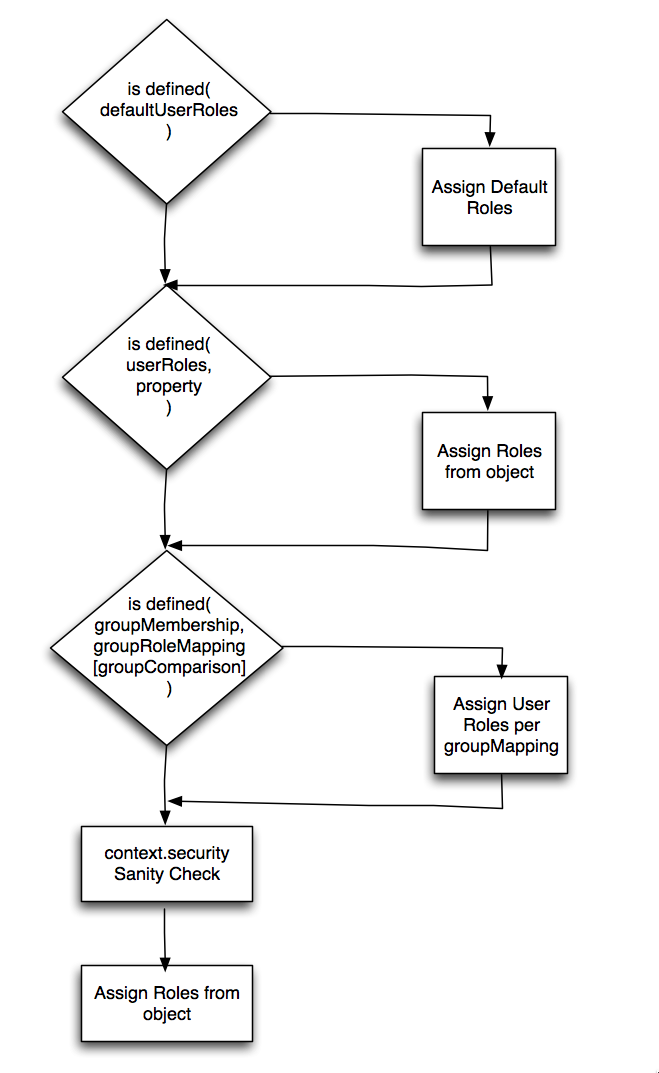
In OpenIDM, RBAC incorporates authentication and authorization options from roles configured for clients, for managed / internal users, as well as for group memberships.
The properties listed in this section are described in "Configuring Pass-Through Authentication".
Roles and authentication options can be configured for users in three stages:
- Client Controlled
-
The
defaultUserRolesmay be added to authentication modules configured in the applicableauthentication.jsonfile. Default roles are listed in "Roles and Authentication".If you see the following entry in
authentication.json, the cited authentication property applies to all authenticated users:"defaultUserRoles" : [ ] - Managed / Internal
-
Accumulated roles for users are collected in the
userRolesproperty.For a definition of managed and internal users, see "Authenticating OpenIDM Users".
- Group roles
-
OpenIDM also uses group roles as input. Options include
groupMembership,groupRoleMapping, andgroupComparison - context.security
-
Once OpenIDM assigns roles and authentication modules to a user, OpenIDM then evaluates the result based on the
context.securitymap, based on the scripts in thepolicy.jsfile. For more information, see "Roles, Authentication, and the Security Context".
Roles, Authentication, and the Security Context
The Security Context (context.security), consists of a principal (defined by the authenticationId property) and an access control element (defined by the authorization property).
If authentication is successful, the authentication framework sets the principal. OpenIDM stores that principal as the authenticationId. For more information, see the authentication components defined in "Supported Authentication Modules".
The authorization property includes an id, an array of roles (see "Roles and Authentication"), and a component, that specifies the resource against which authorization is validated. For more information, see "Configuring Pass-Through Authentication". :